What is an icon
An icon is used to provide additional meaning to text and, in some rare contexts, meaning on its own.
You can see all the available icons ("glyphs") in our icon library, also known as Flight Icons library.
Types
There are four types of icons: Outlined, Filled, Off, and Contained.
Outlined
Outlined icons are icons with a standard outline.
Use Outlined icons by default.

Filled
Filled icons are icons with a solid fill and are indicated by -fill in the icon name.
Use Filled icons to show a toggled state or for contrast with Outlined icons.
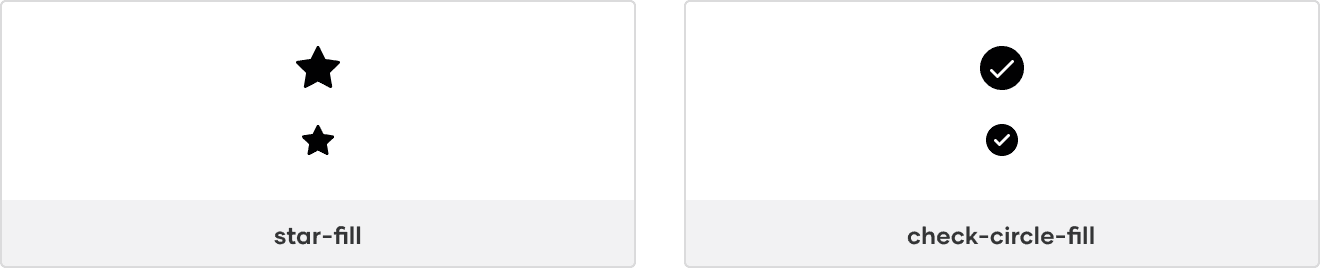
Indicating a toggled state
For objects that can be toggled on/off, show the Outlined icon for off and the Filled icon for on.

Using for contrast
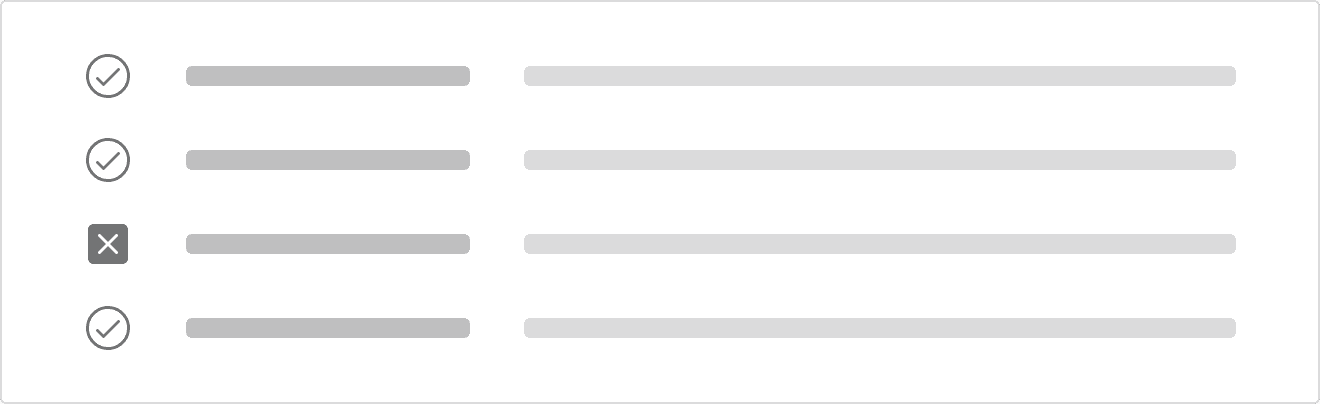
If contrast against other icons is important, use Filled for the more important icon(s).
For example, when showing one failure in a list of 20 otherwise successful builds, use x-square-fill while keeping the remaining icons in the Outlined style so the failure is more prominent.
Off
Off icons are icons including a strike-through and are indicated by -off in the icon name.
Use Off icons to indicate something is disabled, unavailable, or will return a toggled icon off.

Indicating a disabled or unavailable icon
When needing to indicate an action is disabled or unavailable, consider pairing an Off icon with the color style Foreground/Disabled and cursor property value not-allowed.
Return toggled state back off
If an object is toggled on and it can be toggled off, consider showing the Off icon on hover to indicate that clicking the icon again will toggle the object back off.

Contained
Contained icons are icons with a containing shape and are indicated by their shape type in the icon name, e.g., -circle, -square, etc.
Use contained icons for emphasis in the hierarchy.
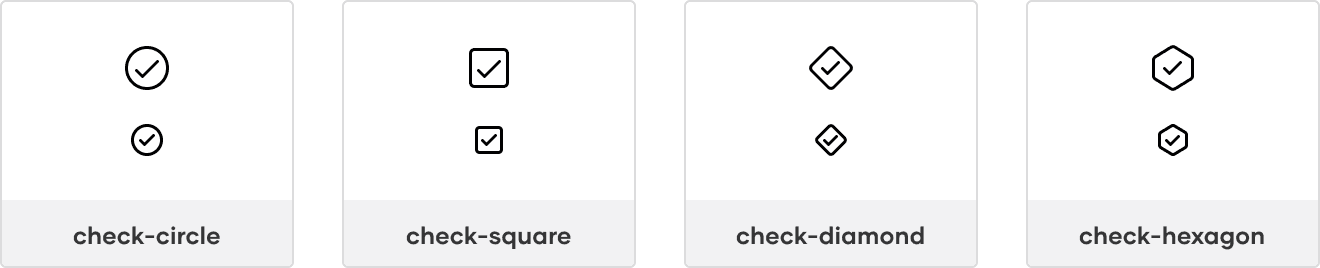
If an object can have multiple states, use a Contained icon for the overall parent state and the Outlined icon(s) for the children’s state(s).

Animated
Animated icons are icons with an animated effect that show a transition between two states.

Use animated icons to communicate activity happening in the background. For example, when an object is updated, the loading icon could appear after the save action is triggered, indicating that the changes are in progress.

Sizes
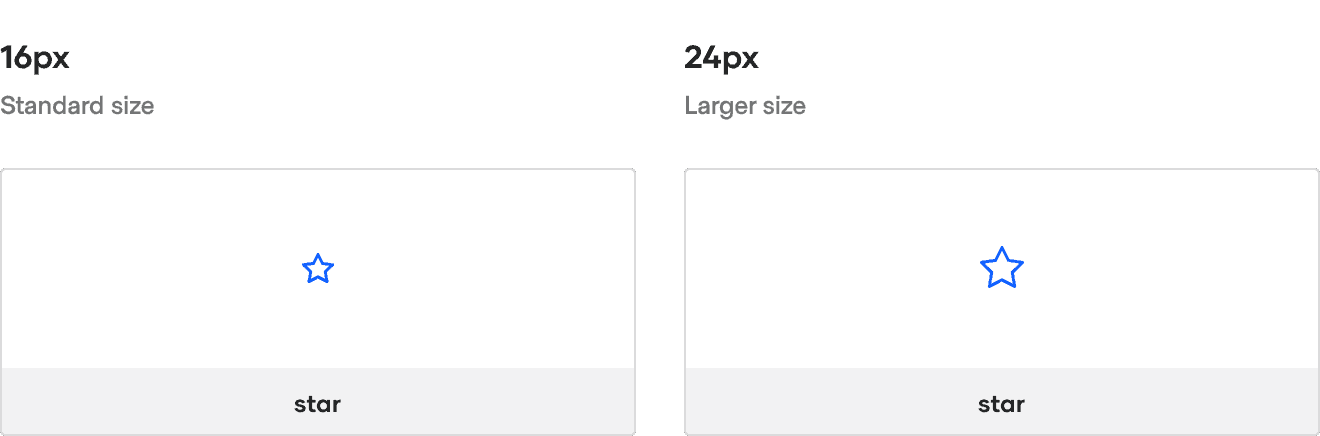
Icons are optimized for two icon sizes: 16px and 24px.
Use 16px icons by default in product interfaces and 24px icons for empty states.
States
Icons frequently represent different states within product interfaces, most commonly as states of an object or states of feedback.
States of an object
Some objects can return a state, e.g., a Build, Run, Cluster, etc. Objects are typically displayed in lists or as cards and include their state when presented to the user.
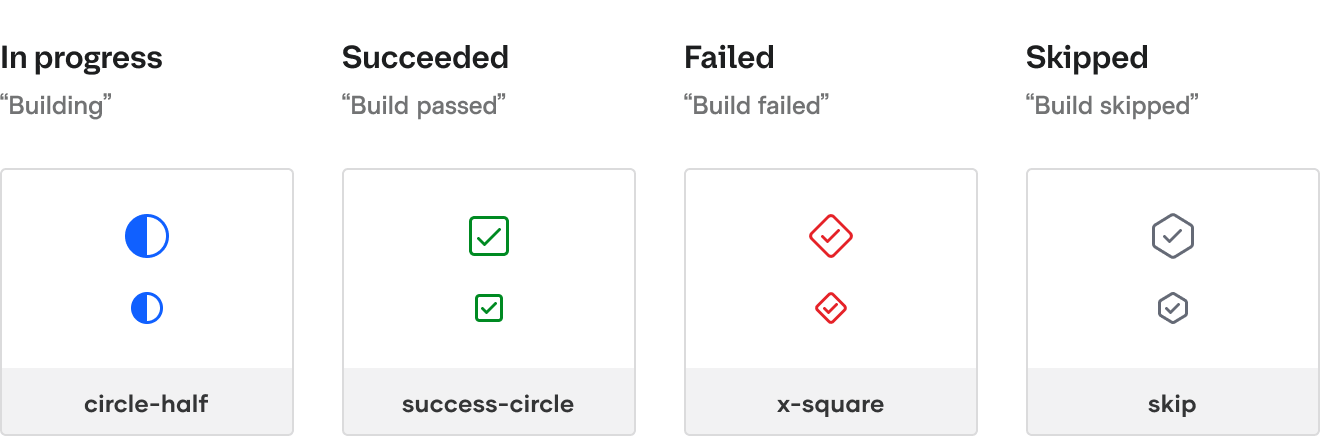
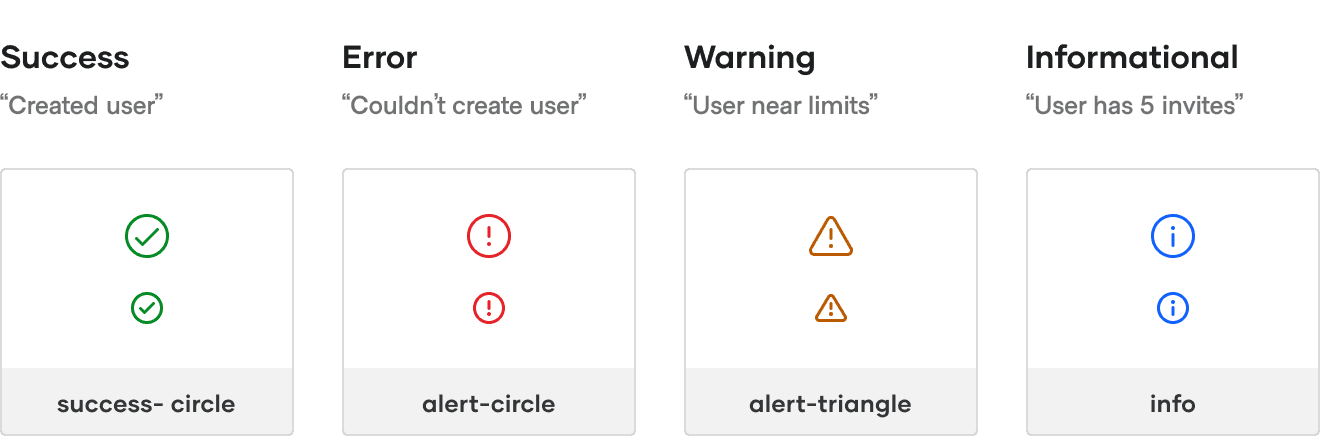
States of feedback
Feedback is presented in response to user interaction, such as a displaying a success message after submitting a form or a warning when a user nears their usage limit.
Common icons
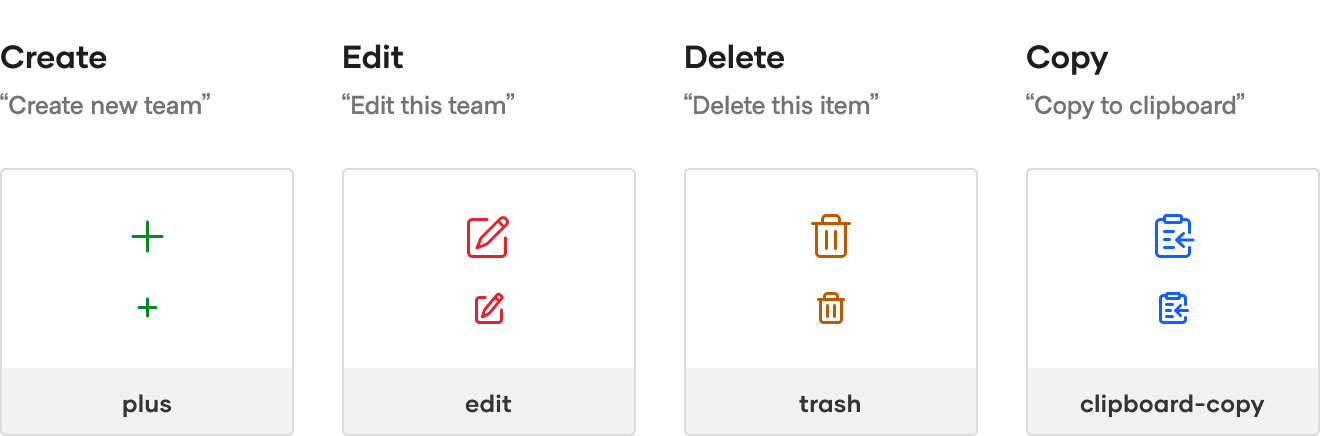
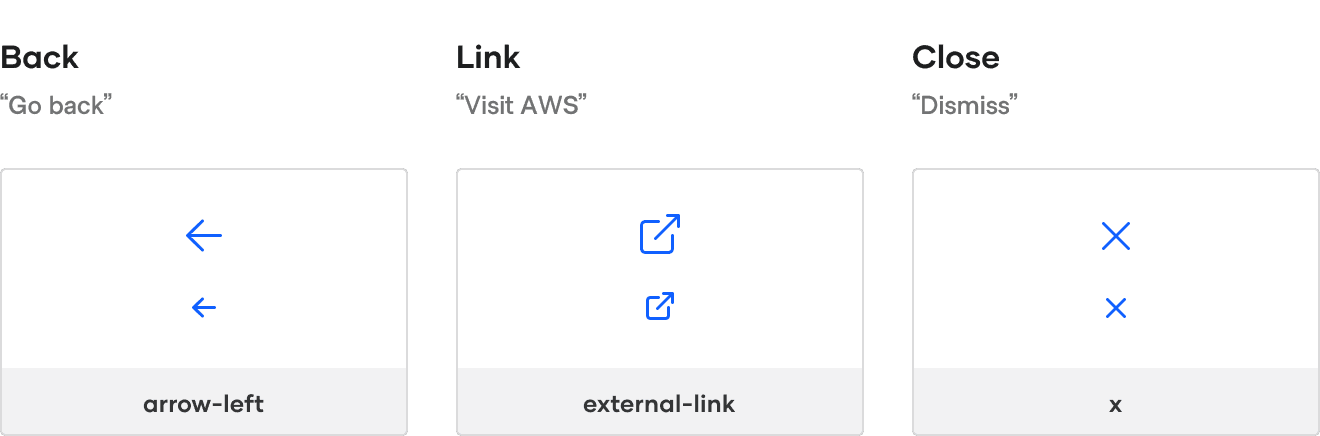
Some icons represent common actions within our products.
Editing actions
Navigation actions
Help actions
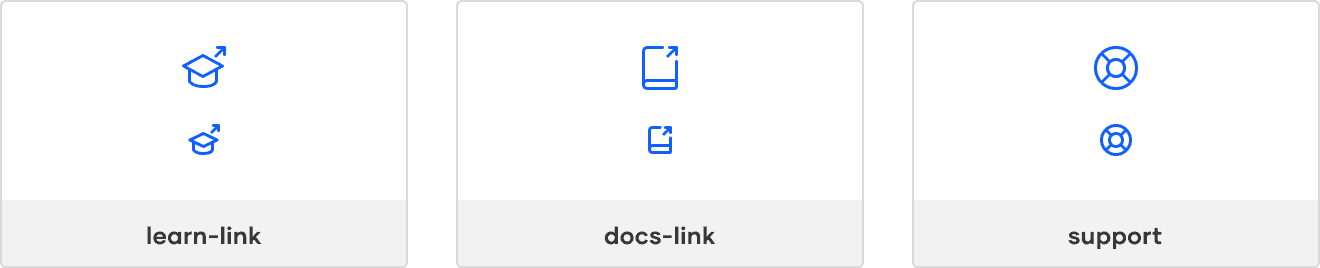
Use
learn-linkwhen linking to tutorials.Use
docs-linkwhen linking to documentation pages and installation guides.Use
supportwhen referencing HashiCorp support.
How to use this component
The most basic invocation of the Icon component requires only the @name property to be passed with a value matching an existing name in the Icon library:
<Hds::Icon @name="alert-circle" />It renders to this (where the id will be unique each time):
<svg
  id="icon-ember115"
  class="hds-icon hds-icon-alert-circle"
  width="16"
  height="16"
  viewBox="0 0 16 16"
  xmlns="http://www.w3.org/2000/svg"
  fill="currentColor"
  aria-hidden="true"
  data-test-icon="alert-circle"
>
  <use href="#hds-icon-flight-alert-circle-16"></use>
</svg>
Because the icons are hidden to assistive technology, they cannot be used on their own and must be used inside of an element with an accessible name. See the Accessibility section for more details on how to best use this component in different contexts.
Size
The default size is 16px. To use the alternative 24px icon size, set the @size value:
<Hds::Icon @name="zap" @size="24" />Color
The default value is currentColor which uses the inherited text color as the icon color. When setting a custom value, we recommend using one of the pre-defined foreground color variables to ensure consistency with our design language:
<Hds::Icon @name="zap" @color="success" />For the list of possible foreground colors supported, refer to the Component API section for details.
It’s also possible to provide a CSS color as a string (in this case the color will be applied as SVG fill property). The string can be a CSS var() that uses one of the predefined color tokens:
<Hds::Icon @name="zap" @color="var(--hds-product-boundary-brand-color)" />Or it can be one of the standard CSS color formats (hex, rgb, rgba, hsl, named color, etc.):
<Hds::Icon @name="zap" @color="rebeccapurple" @isInline={{true}} />
<Hds::Icon @name="zap" @color="rgb(46, 113, 229)" @isInline={{true}} />
Stretched
To have the icon fill the parent container (width: 100%, height: 100%), set the @stretched attribute to true:
<div class="doc-icon-demo--constrain-max-width">
  <Hds::Icon @name="zap" @size="24" @stretched={{true}} />
</div>
Block vs. inline display
To change the default display from block to inline-block, set @isInline to true:
<Hds::Icon @name="triangle" @isInline={{true}} />
<Hds::Icon @name="triangle-fill" @isInline={{true}} />
Aligning icons
Because the Hds::Icon component has a block display value by default (changeable using the @isInline argument), the icon behaves like a block element. So, if you want to horizontally align it in relation to other sibling elements, you will have to use CSS to achieve the expected result.
For example, to visually center an icon with a generic text node, you will need to use a parent flex container with align-items: center.
Animated icons
The loading and running icons are animated by default, meaning no additional properties are needed:
<Hds::Icon @name="loading" @size="24" />A prefers-reduced-motion media query will automatically disable the animation if users set this preference in their environment.
If you need the non-animated version of these icons, use the corresponding loading-static and running-static:
<Hds::Icon @name="loading-static" @size="24" />Ember test selectors
The Hds::Icon component exposes the following data attributes:
data-test-icon="[icon-name]"- provides a simple way to get the icon name if needed for testingdata-has-carbon-equivalent- if the HDS Flight icon has an equivalent Carbon icon (used in theming)data-is-carbon- if a Carbon theme is enabled and the icon has a Carbon equivalent
Note: we recommend installing ember-test-selectors which strips out all data-test-* attributes for production builds.
Component API
name
string
size
'16' | '24'
- 16 (default)
- 24
color
string | CSS color
- primary
- strong
- faint
- disabled
- high-contrast
- action
- action-hover
- action-active
- highlight
- highlight-on-surface
- highlight-high-contrast
- success
- success-on-surface
- success-high-contrast
- warning
- warning-on-surface
- warning-high-contrast
- critical
- critical-on-surface
- critical-high-contrast
fill property). If no @color argument is provided, the component will inherit its color from the parent container/context (fill="currentColor").
stretched
boolean
- false (default)
true will make the icon have a height and width of 100%.
isInline
boolean
- false (default)
display style for the icon. Setting it to true will make the icon have a display of inline-block.
title
string
aria-hidden value to false instead of the default value of true.
Conformance rating
When used as recommended, there should not be any accessibility issues with this component.
Browser accessibility support
Accessibility support for SVGs is inconsistent across browsers and assistive technology. Currently, the best practice is to set the aria-hidden attribute to true on the SVG itself (as we do by default for the Hds::Icon component). This means that the icon (both the singular icon and the icon component) will need to be used in context. The icons themselves are for presentation purposes only and should never be used on their own.
Activity report
If you make a custom element, or want to use a Hds::Icon inside of a native HTML element like a <button> element, ensure that an aria-label attribute is added, like this:
Resources
Here is a list of resources that are associated with our HDS icon component.
Icon Library
A list of all icons our component supports.
Figma library
For internal use only, the Figma library of icons that designers can leverage in their designs.
HDS support
If you are unable to find a specific icon, or notice a problem with an existing one, reach out to HDS support.
Icons in Carbon
Moving from the Helios visual language to IBM Carbon also involves updating icons. We went to great lengths, both in Figma and in code, to support switching an icon’s glyph (the SVG vector itself) depending on the theme applied. Refer to these details about how this works and the impact on consumers.
HDS to Carbon mapping
Currently, about half of the Flight icons have a Carbon equivalent. If there is no equivalent, the Flight icon will be used instead. As a result, pages using a Carbon theme may show a mix of HDS and Carbon icons. See the Icon library for current mappings.
Service icons in Carbon themes
Color versions of service icons (e.g., aws-color, gitlab-color, azure-color, etc.) do not retain their brand colors in Carbon themes. Instead, they switch to the non-color version (e.g., aws, gitlab, azure).
When switching to a Carbon theme, these icons do not have a semantic color set by default. We recommend using foreground-color-primary or another semantic foreground color token.
In Figma, use Update Service Icon Colors in the Design Tooling Figma Plugin to find and update service icon colors in a design that uses a Carbon theme.
Icon sizes
HDS and Carbon treat icon sizes differently. HDS provides icons at 16px and 24px, while Carbon provides a single icon that is scaled to the requested size. As a result, the visual weight of an icon may change when the theme is switched.
For designers
In Figma, icons automatically switch to their Carbon glyph when a Carbon theme is active. If a Carbon equivalent is not available, the HDS icon is used instead. You do not need to replace icon instances when changing themes.
For engineers
Hds::Icon will automatically render the Carbon glyphs when a Carbon theme is active. Component invocation remains the same and the switching is fully automated.
Making this possible required changing how icons are delivered and rendered.
What has changed under the hood
Before v7.0, icons were delivered as a single ~1MB SVG sprite injected in the page at load time. Now that two variants need to be supported per icon, this approach is unsustainable.
To improve this, icon delivery and resolution now work as follows:
- Each icon is now loaded individually, the first time it’s rendered, and reused from then on: your application only downloads the icons it actually displays.
- The loading is asynchronous, so an icon may take a moment to appear the first time it’s rendered, while any subsequent usage is immediate.
- The library is resolved at render time, combining two conditions: if a Carbon theme is applied, and if the icon has a Carbon equivalent. When both are true the Carbon glyph is rendered, otherwise the Flight one is used as fallback.
- The resolution is reactive, so switching theme at runtime swaps the glyphs of the icons already rendered on the page.
- Loading and switching are handled entirely by the component, so no configuration is required.
What has changed in the public APIs
Most of the existing behavior in Hds::Icon is preserved:
- The API of the component has not changed. Existing
Hds::Iconinvocations stay the same and glyph switching is automatic. - The icons are still declared by
@name, using the same names as before. There is no separate name or argument for the Carbon variant. - The rendered markup is still an inline
<svg>element with the same classes, sizing, coloring, and accessibility behavior.
There are, however, a few changes and implications to be aware of:
- The symbol IDs are different, changing from
#flight-[name]-[size]to#hds-icon-flight-[name]-[size]and#hds-icon-carbon-[name]. Any code or test targeting the old IDs will need to be updated. - Two more
dataattributes have been added (data-has-carbon-equivalentanddata-is-carbon). See Ember test selectors for details. - The SVG sprite is not injected in the application’s
index.htmlanymore, so theflightIconsSpriteLazyEmbedsetting is obsolete. It is therefore safe to remove it from theconfig/environment.jsfile. See Getting started for engineers. - The rendering is now asynchronous, so tests asserting on the content of an icon may need to wait for the loading to be completed.
- The glyph switching is driven by the theme applied at application level. If you use
ThemeContextto apply a scoped theme to a portion of the page, the glyphs within it will not change.
7.0.0
Made significant changes to icon loading and available icons to support Carbon themes
- Changed the way that icons are loaded (from SVG sprite to dynamic importing and generation at runtime)
- Added support for loading Carbon icons when the user is using a Carbon theme
- The full SVG sprite is no longer injected into the consuming application
- Consumers can safely remove the
flightIconsSpriteLazyEmbedsetting in theirconfig/environment.jsfile.
5.2.0
Converted component to .gts format
5.0.0
Renamed the volume-2 icon to volume-up
4.15.0
Aligned private class properties to follow a standardized notation
4.9.0
Added the Hds::Icon component. It replaces the FlightIcon component.
How to migrate
We now recommend migrating the existing FlightIcon instances to the Hds::Icon component.
You can automate this migration using the codemod v4/icon (see readme file). This codemod provides also a special flag to preserve the old display layout for the icon (but we suggest to avoid using it, it's likely not needed at all).
If you have already started to use the FlightIconSignature in TypeScript, you will have to replace the signature with the equivalent HdsIconSignature (note: the isInlineBlock argument has now become isInline)
Aside from the codemod, which serves to update the component invocations, you will need to ensure that any style and/or testing code that uses CSS selectors from FlightIcon (.flight-icon) is migrated to the new component classes (.hds-icon). We suggest using a simple “find-and-replace” as a suitable strategy for updating these selectors.
