The Helios Design Tooling Figma Plugin helps you create, assess, and work more efficiently with HDS Figma assets. Use it to automate repetitive design tasks, compare migration changes, and update service icon colors.
Get started
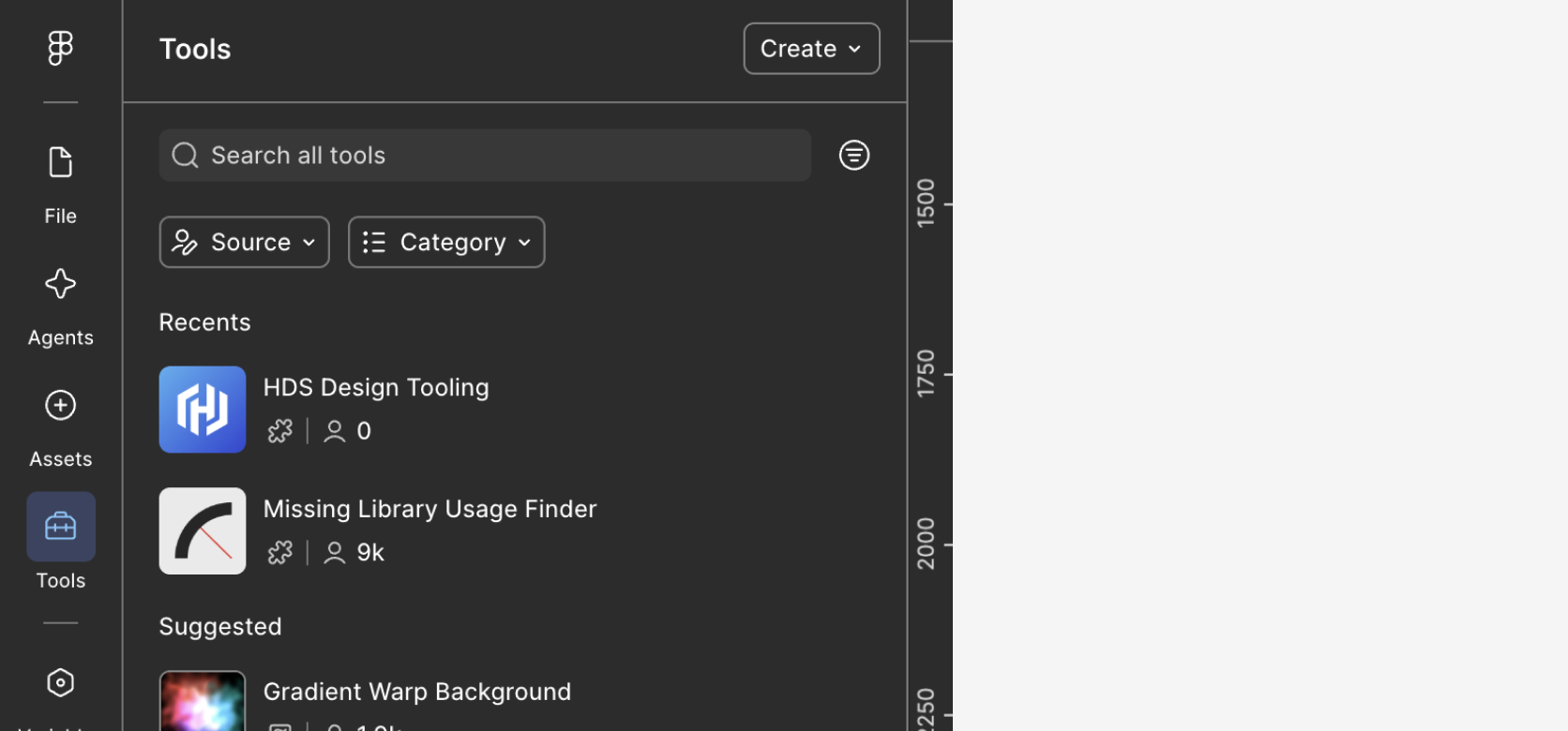
- Open the Helios Design Tooling Figma Plugin from the Figma Community.
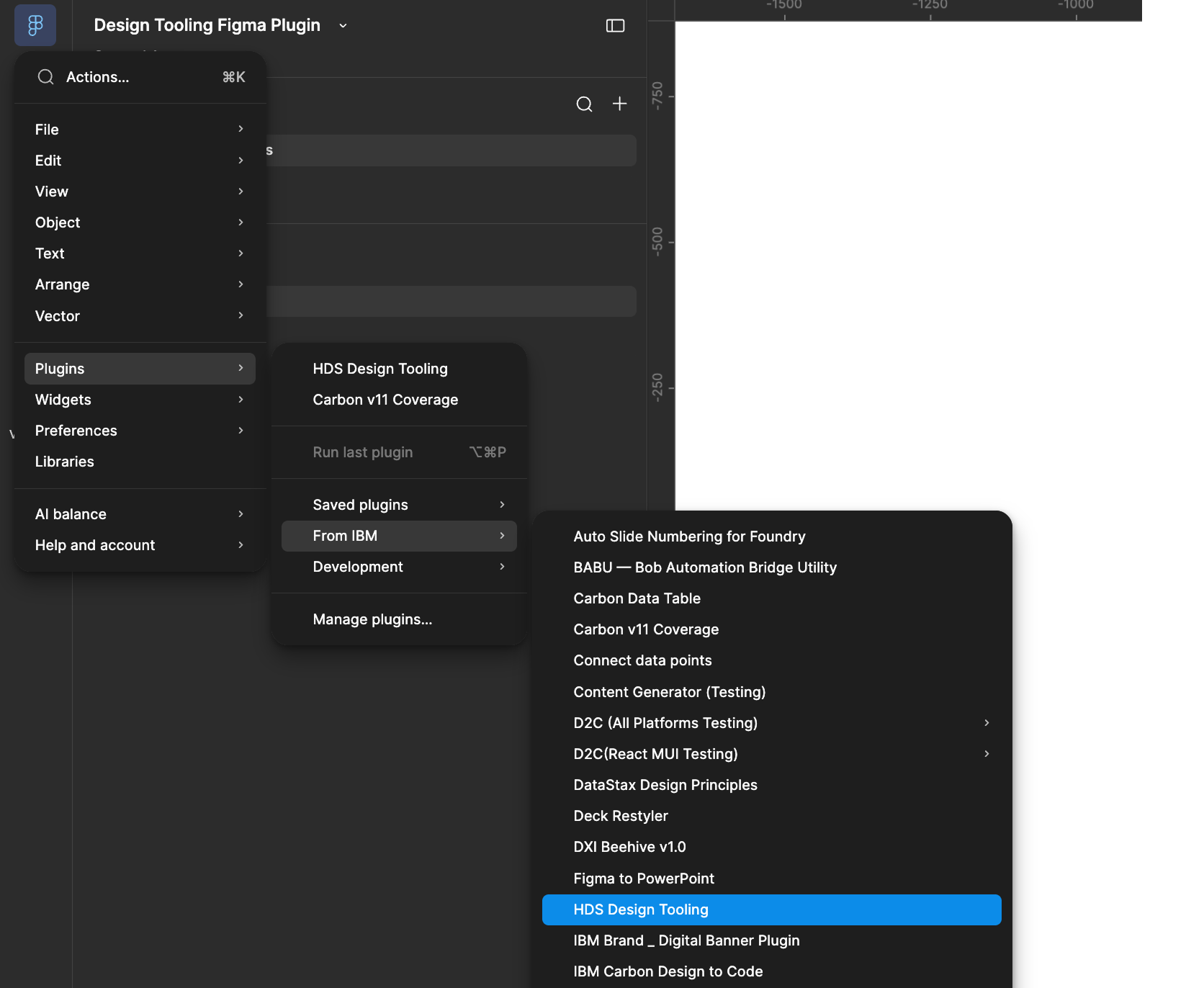
- In a Figma file, open the Plugins menu and select the From IBM sub-menu.
- Select HDS Design Tooling.
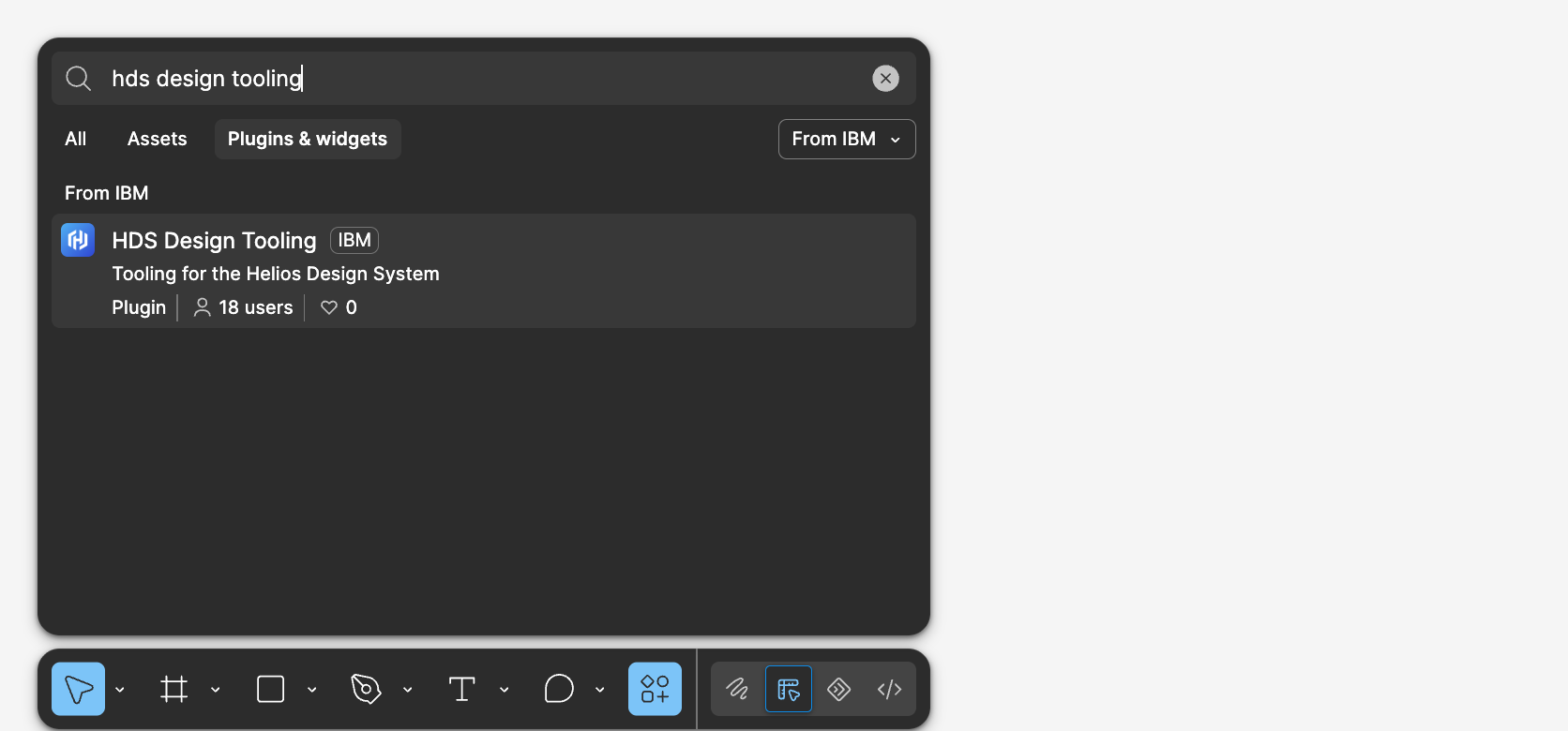
Alternatively, open the Figma actions menu (cmd/ctrl + k) and search for "HDS Design Tooling."
Enable the HDS Foundations v2.0, HDS Components v2.0, HDS Patterns v2.0, and HDS Icons libraries in your project before using the plugin.
Feedback and requests
Use the Submit Feedback link in the plugin to report an issue, share feedback, suggest a workflow improvement, or request a new feature.
For feedback, please include:
- which feature you used
- the Figma context
- what you expected versus what happened
For feature requests, please include:
- a description of the repeated task
- current friction points in the process
- the desired outcome of the feature
- who benefits from the feature
Use Table Generator to create HDS tables without manually assembling repeated components. Configure the table structure, column properties, and cell content before generating it.
Create a table
- Open Table Generator.
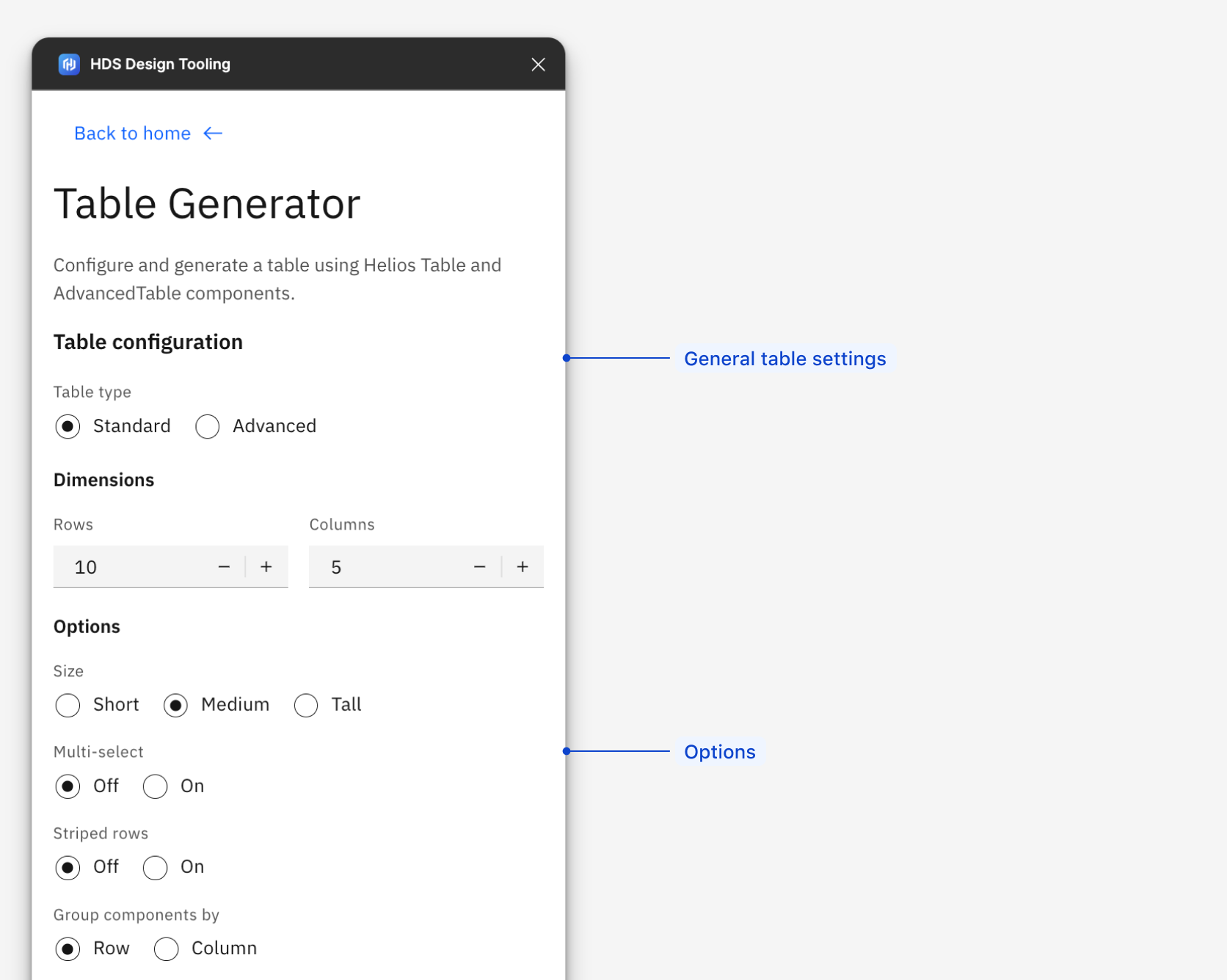
- Choose a Standard or Advanced table type.
- Set the desired number of rows and columns.
- Select table options: size, multi-select, row striping, and whether the table uses Auto Layout by row or column.
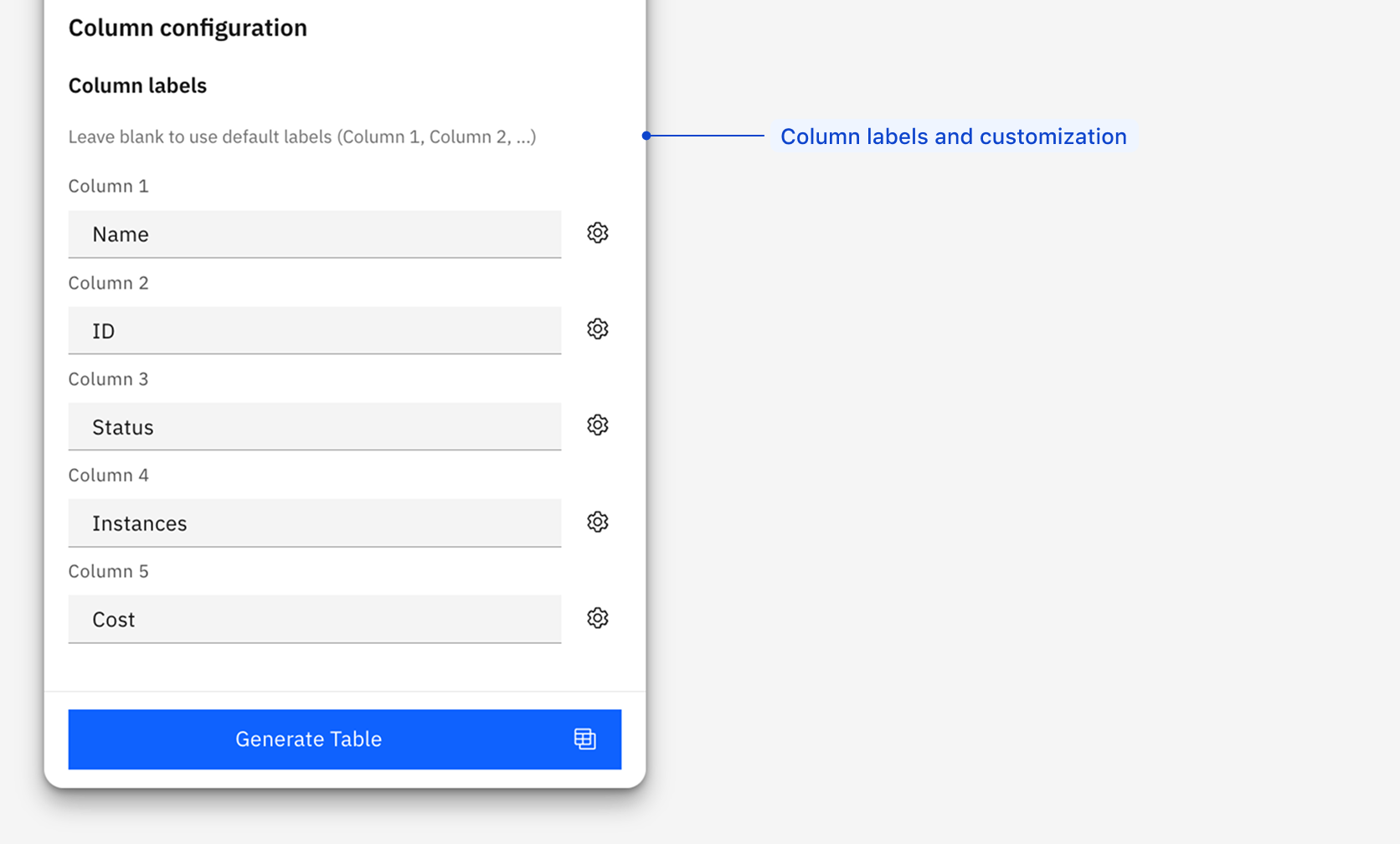
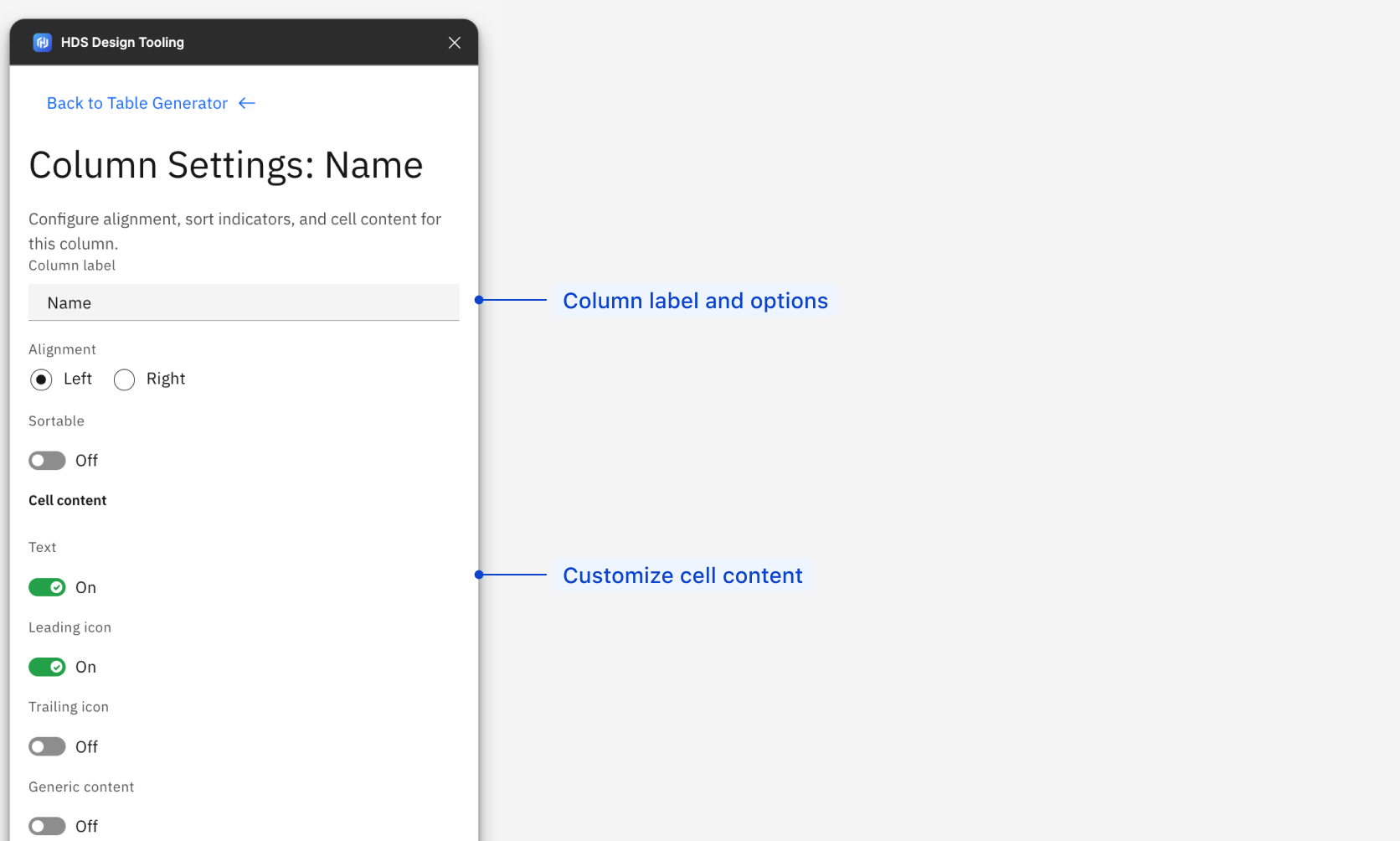
- Add a label for each column. Use the settings icon to configure alignment, sorting, icons, and cell content.
- Select Generate Table.
Column cells can contain text, leading or trailing icons, or a generic placeholder. The generic placeholder supports the use of the HDS components Badge, Badge Count, Button, Link, and Tag. Additional customization for cell content is possible once the table is generated.
Edit a generated table
- Open Table Generator and select a generated table on the Figma canvas.
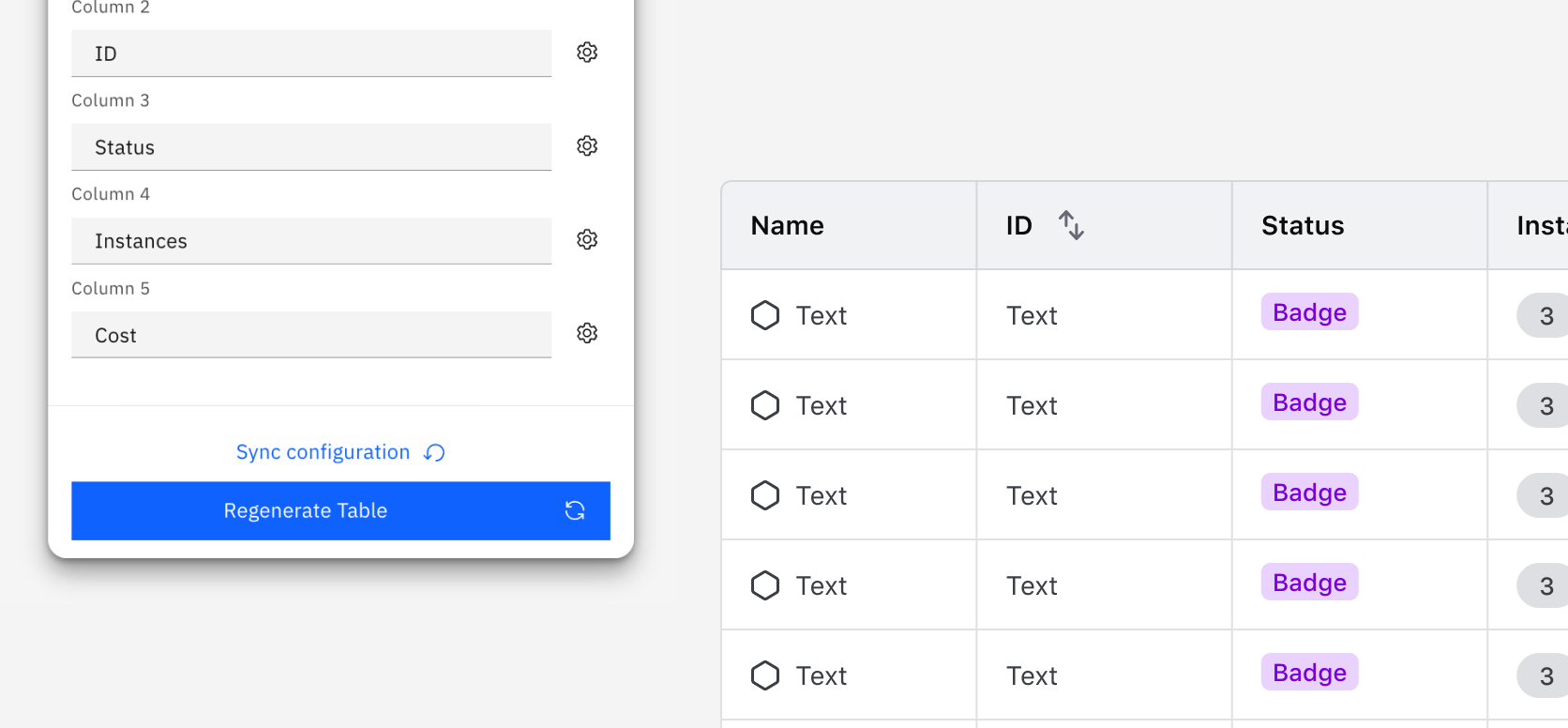
- Select Sync configuration to load its saved configuration.
- Update the settings, then select Regenerate Table.
The plugin saves the configuration from each table it generates. If manual changes have been made since the table was generated, sync the configuration before making edits within the plugin.
Visual Diff compares two Figma layers at the pixel level to calculate a similarity score and generate onion-skin and highlighted-difference views for review. Use it to focus review on visual changes after an HDS-to-Carbon migration or library update. The result identifies differences; it doesn't determine whether a design is correct.
Before you begin
Choose two comparable layers and use matching states and content where possible. Visual Diff can export Figma layers that support image export.
Visual Diff doesn't resize references before comparing them. Different dimensions affect the result, so compare layers of the same size whenever possible.
Compare two references
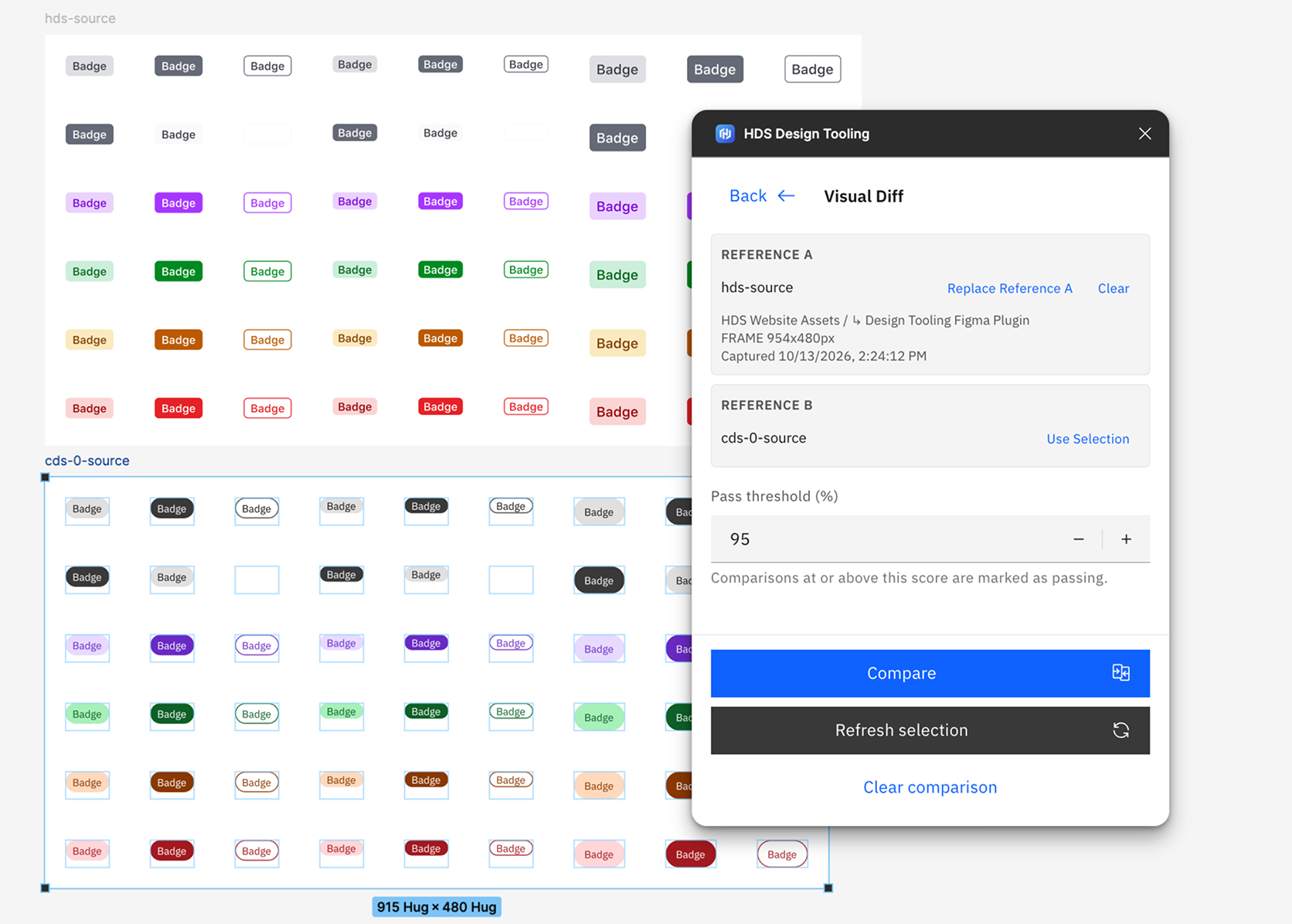
- Open Visual Diff and select a layer for comparison on the Figma canvas.
- Select Use Selection to set the selection as Reference A.
- Select a second layer on the canvas, then select Use Selection for Reference B.
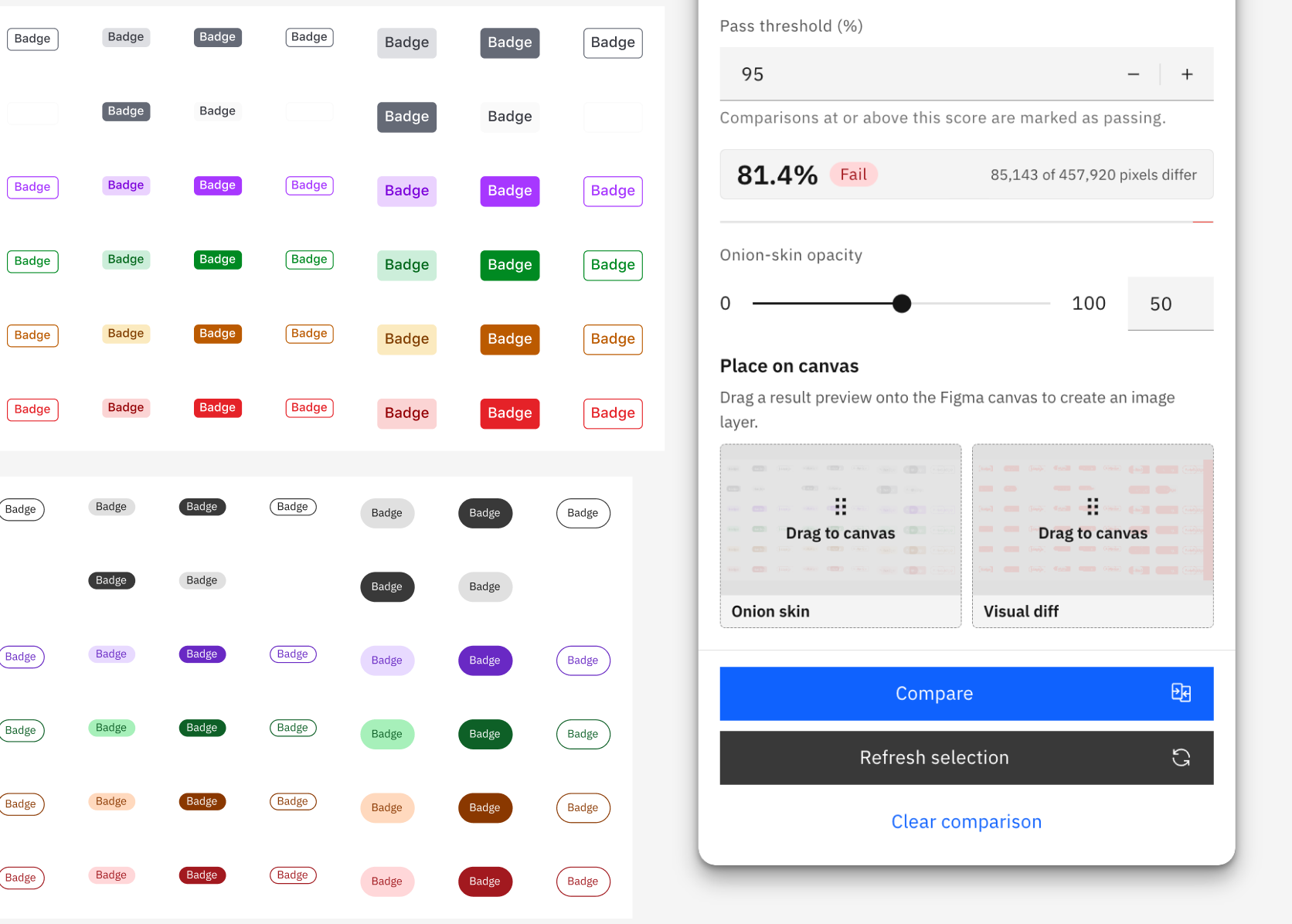
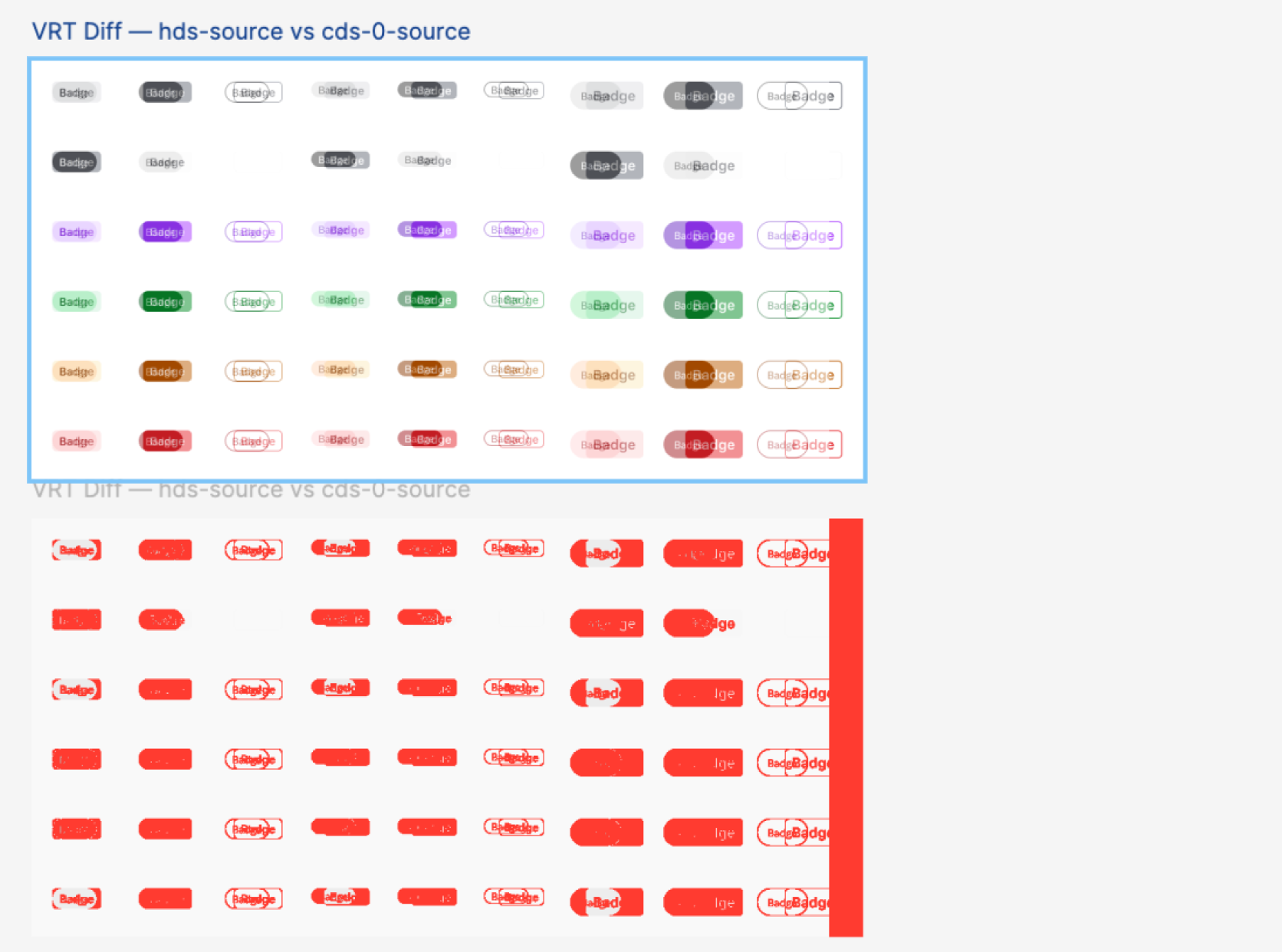
- The Compare button will perform the comparison, generate a score based on pixel differences, and display thumbnails for onion skill and visual diff comparisons.
- Review the similarity score. Drag the thumbnails from the "place on canvas" section onto the Figma canvas to more closely inspect the differences.
- If Reference A has been updated use Refresh selection to reload it from the local plugin storage.
- Use Clear comparison to reset Reference B and the current results.
Interpret and share results
A high similarity percentage means fewer pixel-level differences. It doesn't confirm that a migration or design review is complete. Intentional changes to content, layout, theme, typography, or component behavior can lower the score.
Use the onion skin and highlighted difference views to identify differences. Inspect the related Figma layers and relevant HDS or Carbon guidance to determine whether action is needed.
Drag either result preview onto the Figma canvas to create an image layer for review or discussion.
Reference storage
Visual Diff works across Figma pages and files. It saves Reference A in the plugin's local storage and recalls it when you open the plugin in another file.
Use Update Service Icon Colors to find service icon color variants, such as aws-color and azure-color from the HDS Icons Library. These icons use branded colors that don't support transition between IBM Carbon light and dark themes.
Project Solar's carbonization work requires color service icons to be replaced with dynamic, non-color variants. These variants accept semantic and core colors from HDS libraries. The HDS team has added these variants to the HDS Icons library. In design files, you still need to apply the appropriate semantic variable.
Find color service icons
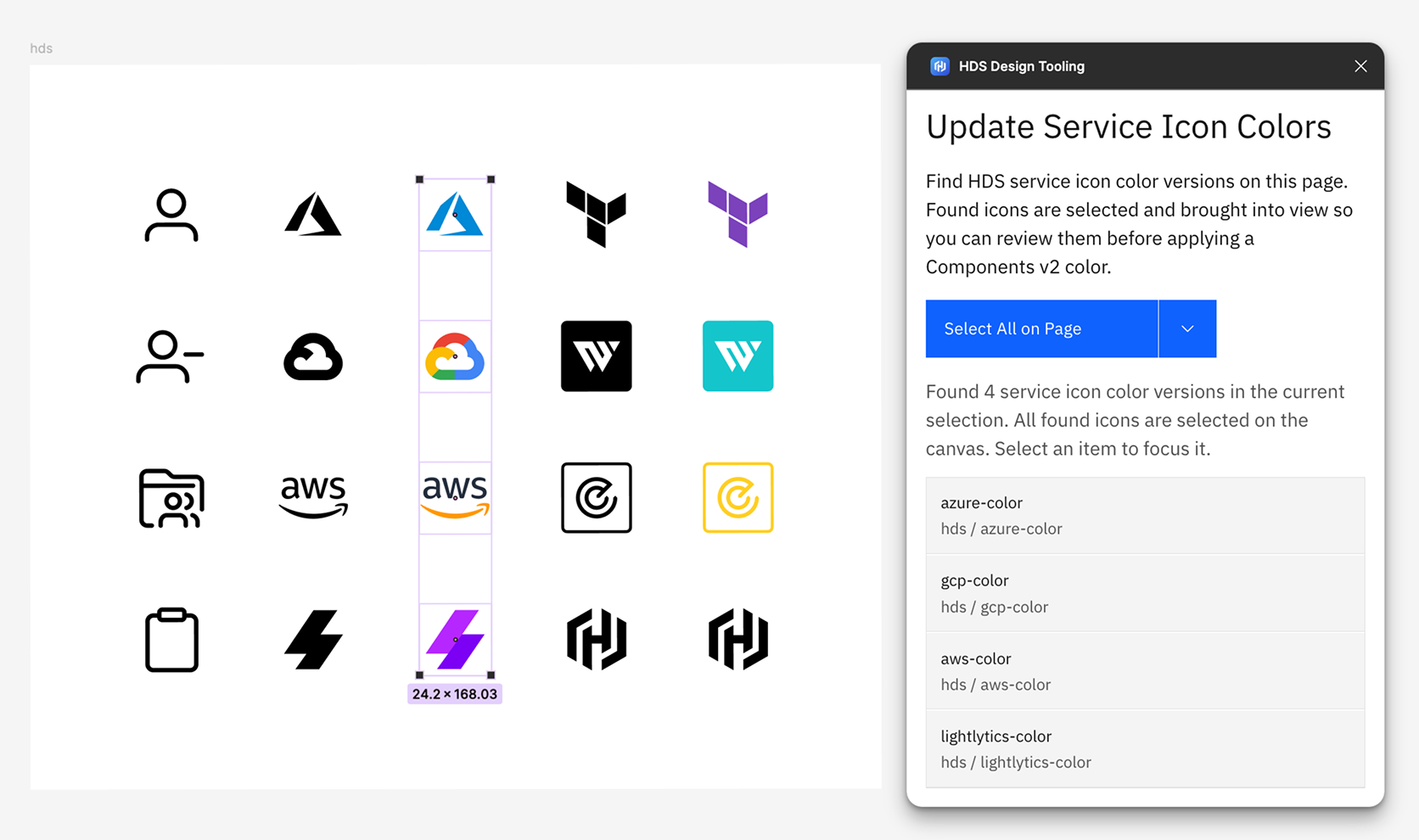
- Open Update Service Icon Colors.
- Select Select All on Page to scan every instance on the current page, or limit the scan to a single layer on the canvas with Select Icons in Current Selection
- Review the matching icons that the plugin selects on the canvas.
The plugin finds HDS icon component instances whose names follow the color service icon pattern and ends in -color.
Beta release
Initial beta release of the plugin with support for these features:
- Table Generator
- Visual Diff
- Update Service Icon Colors