The page navigation is complete. You may now navigate the page content as you wish.
Skip to main content

Documentation versions

Other versions
HDS components v7.0.0 is now available! Learn more about the changes in this major release

Theme selection

Guidelines for allowing users to select an application's visual theme.

The theme selector provides users with a way to switch the application's visual theme between supported options. A user can change the theme via the existing User dropdown in the App Header's utilityActions.

For more details about how theming is implemented in HDS, and how to use it for theme selection in an Ember application, see implementing theming.

Placement

Place theme options as a new section within the User dropdown or settings menu in the App Header after the existing account-level actions (Account settings, Sign out).
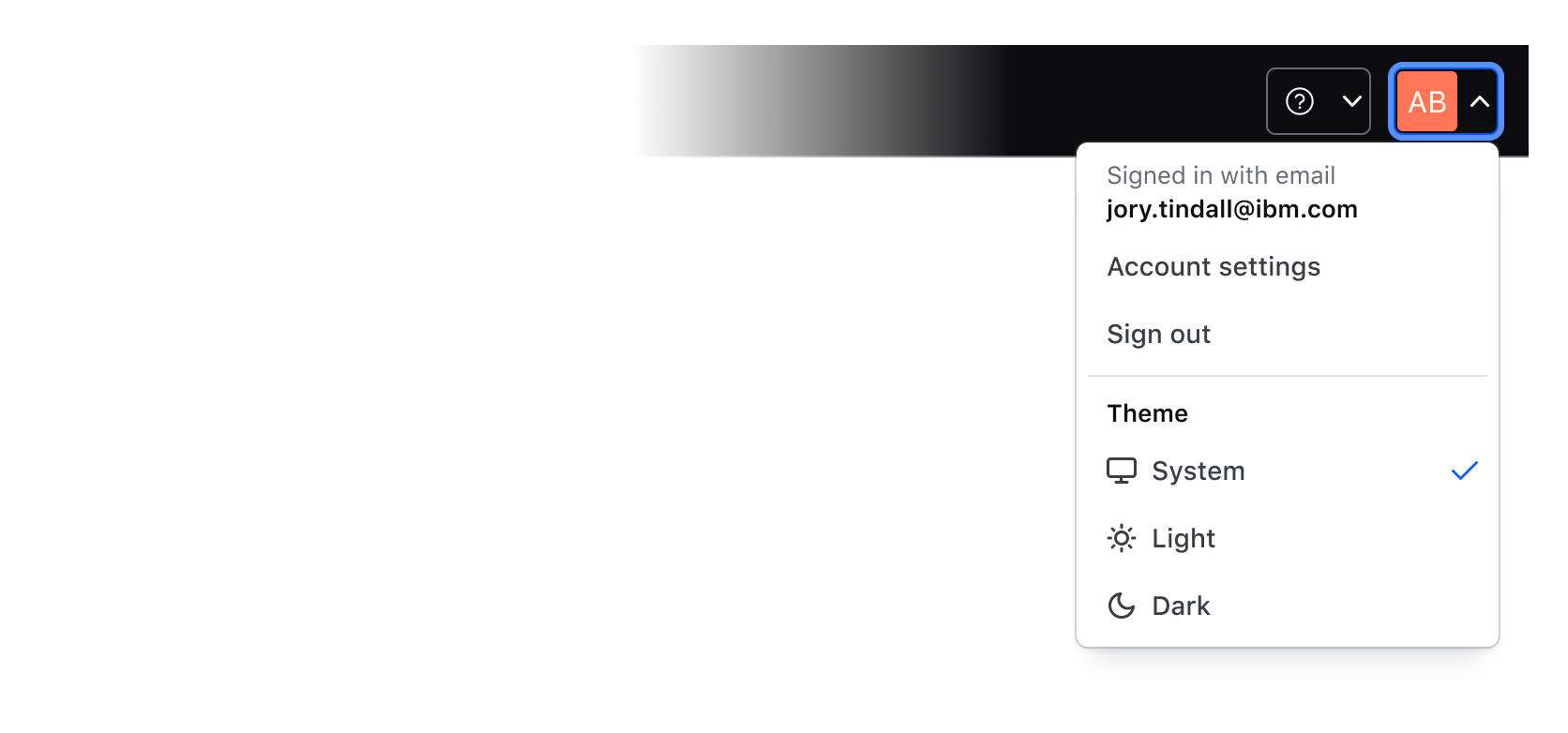
An example of the open user settings menu in the App Header with available theme selection options.

Components

The theme section should be composed using the Dropdown contextual components:

  • Separator: adds visual differentiation between the theme selection, the account actions, and settings.
  • Title: section label; set the text to "Theme"
  • Checkmark: one instance per theme option; includes a leading icon and accounts for the selected state

Options

Use a Checkmark List Item with a leading icon that best corresponds with the visual appearance of the theme for each theme option. Common examples include:

Option Leading icon Notes
HashiCorp theme
hashicorp
Sets the theme to the "classic" HashiCorp Helios theme (default in code). Only available while the application is migrating to the "carbonized" HDS; remove it once the migration is complete.
System theme
monitor
Reflects the operating system's current light or dark preference
Light theme
sun
Sets light mode regardless of OS setting
Dark theme
moon
Sets dark mode regardless of OS

Default theme

During the migration, applications usually roll out the "carbonized" HDS to users in cohorts (e.g., via feature flags), so the default depends on the cohort:

  • Users not yet migrated: use default, to keep the "classic" HDS visual language.
  • Migrated users: use light, to make the transition to IBM Carbon less jarring.

System theme detection

The System theme should automatically match the user's operating system (OS) light or dark preference, therefore, if a user switches their OS preference from light to dark while the application is open, it should reflect the change immediately.

The prefers-color-scheme CSS media query is the standard mechanism for reading this preference and is what is used under the hood by the theming logic provided by the design system.

Persistence

Persisting the user's choice ensures their preferred theme is displayed by default whenever they visit the application, reducing friction for future visits.

When the user's preference isn't stored in localStorage or as a user setting, the application will display the default theme. This creates an inconsistent and disruptive experience, particularly for users who rely on dark mode for accessibility reasons.

How to implement the theme selector

Add theme options using Dropdown checkmark list items to your existing user menu in the App Header.

To update the theme, use the setTheme method from the Theming service. This conditionally applies the appropriate classes on the <html> element. The theme should persist across sessions.

Connect each option to the theming service so selection updates the theme immediately, and persist the selected preference in the method best suited for your application. In this example, the preference is stored in localStorage.

For more information on theming, see the Theming overview.

This example shows an application that has fully migrated to the "carbonized" HDS, so it only offers the system, light, and dark themes. While an application is still migrating, it can also offer the "classic" HDS appearance by adding a default option (the "HashiCorp theme" in the guidelines).

The page navigation is complete. You may now navigate the page content as you wish.
Skip to main content

Documentation versions

Other versions
HDS components v7.0.0 is now available! Learn more about the changes in this major release

Theme selection

Guidelines for allowing users to select an application's visual theme.

The theme selector provides users with a way to switch the application's visual theme between supported options. A user can change the theme via the existing User dropdown in the App Header's utilityActions.

For more details about how theming is implemented in HDS, and how to use it for theme selection in an Ember application, see implementing theming.

Placement

Place theme options as a new section within the User dropdown or settings menu in the App Header after the existing account-level actions (Account settings, Sign out).

An example of the open user settings menu in the App Header with available theme selection options.

Components

The theme section should be composed using the Dropdown contextual components:

  • Separator: adds visual differentiation between the theme selection, the account actions, and settings.
  • Title: section label; set the text to "Theme"
  • Checkmark: one instance per theme option; includes a leading icon and accounts for the selected state

Options

Use a Checkmark List Item with a leading icon that best corresponds with the visual appearance of the theme for each theme option. Common examples include:

Option Leading icon Notes
HashiCorp theme
hashicorp
Sets the theme to the "classic" HashiCorp Helios theme (default in code). Only available while the application is migrating to the "carbonized" HDS; remove it once the migration is complete.
System theme
monitor
Reflects the operating system's current light or dark preference
Light theme
sun
Sets light mode regardless of OS setting
Dark theme
moon
Sets dark mode regardless of OS

Default theme

During the migration, applications usually roll out the "carbonized" HDS to users in cohorts (e.g., via feature flags), so the default depends on the cohort:

  • Users not yet migrated: use default, to keep the "classic" HDS visual language.
  • Migrated users: use light, to make the transition to IBM Carbon less jarring.

System theme detection

The System theme should automatically match the user's operating system (OS) light or dark preference, therefore, if a user switches their OS preference from light to dark while the application is open, it should reflect the change immediately.

The prefers-color-scheme CSS media query is the standard mechanism for reading this preference and is what is used under the hood by the theming logic provided by the design system.

Persistence

Persisting the user's choice ensures their preferred theme is displayed by default whenever they visit the application, reducing friction for future visits.

When the user's preference isn't stored in localStorage or as a user setting, the application will display the default theme. This creates an inconsistent and disruptive experience, particularly for users who rely on dark mode for accessibility reasons.

How to implement the theme selector

Add theme options using Dropdown checkmark list items to your existing user menu in the App Header.

To update the theme, use the setTheme method from the Theming service. This conditionally applies the appropriate classes on the <html> element. The theme should persist across sessions.

Connect each option to the theming service so selection updates the theme immediately, and persist the selected preference in the method best suited for your application. In this example, the preference is stored in localStorage.

For more information on theming, see the Theming overview.

This example shows an application that has fully migrated to the "carbonized" HDS, so it only offers the system, light, and dark themes. While an application is still migrating, it can also offer the "classic" HDS appearance by adding a default option (the "HashiCorp theme" in the guidelines).