How theming works in HDS
Theming allows applications to switch between visual appearances at runtime, e.g., light and dark. Introduced in HDS v7.0, it supports our transition from the "classic" Helios visual language to IBM's visual language.
See From Helios to Carbon for more details about this process.
We expect product teams to "carbonize" their applications at their own pace. Some applications will continue using the "classic" HDS visual language for some time. Others will start migrating and need both visual languages to coexist in the same application. Once fully migrated, they will use only the "carbonized" HDS visual language.
This means that two visual languages need to be supported in HDS at the same time:
- "classic" HDS is the original, light-only visual language. It doesn't have theming.
- "carbonized" HDS is the IBM Carbon visual language applied to HDS. It supports light and dark variants, more precisely described as color modes.
Themes and modes
We distinguish between two related concepts:
- A theme is what an application exposes to its users:
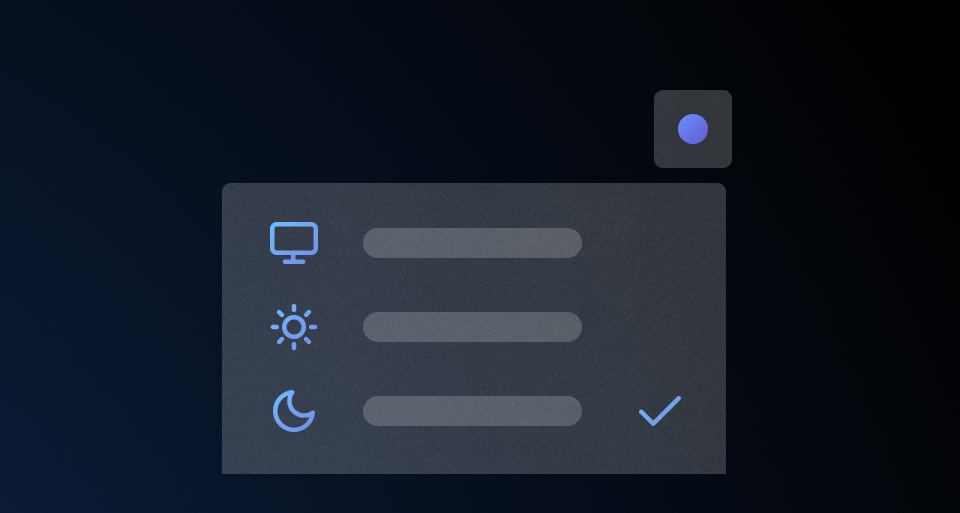
default(the "classic" HDS appearance),light/dark(the IBM Carbon-like appearance), andsystem(light or dark appearance based on the user's operating system preference). - A mode is the underlying IBM Carbon configuration that provides the values for a Carbon
lightordarktheme:cds-g0orcds-g10forlight,cds-g90orcds-g100fordark.
Themes and modes are related but not interchangeable. A theme is a product-facing choice, while a mode is the underlying configuration used to render that choice.
Applications can support different sets of themes and modes depending on their needs and stage of migration, but in general most products should expose themes rather than individual modes to their end users.
Applying themes
A theme applies a coordinated set of HDS values across an application. It is not limited to swapping individual colors. Components and foundations can change together to support the selected visual language and appearance.
Use one theme for the application by default. A local theme can be applied to a bounded portion of the interface when it has a clear and durable purpose, such as application chrome. Avoid using local themes only to add decorative contrast or to compensate for unsupported styling.
For implementation details, see the Code tab. For guidance on the user interface and behavior of a theme switcher, see the theme selection pattern.
Adopting theming
Adopting theming is part of the broader process of "carbonizing" an application. This process is typically gradual because it requires updating the visual language of an existing application. Before you begin, contact the Design Systems Team to plan the migration.
The migration of existing applications usually progresses through three stages.
- Not yet migrated: Applications can continue to use the "classic" visual language until they are ready to begin the migration.
- Migrating: Applications can support the "classic" and "carbonized" visual languages at the same time while product teams migrate their interfaces incrementally. Treat this as a temporary migration state. Coordinate the initial effort with the Design Systems Team.
- Fully migrated: Once an application is fully migrated, it uses the "carbonized" visual language and supports the themes that the product has chosen to expose.
Implementing theming
HDS provides several pre-built sets of themed tokens so each application can import only the visual language or languages it needs.
Each set of themed tokens declares its design tokens under hds-theme-*/hds-mode-* CSS selectors, one for each theme/mode it supports. Then, applying a theme is as simple as adding the corresponding class name to the <html> element of the page. This is what a dedicated hdsTheming service does under the hood.
It's also possible to apply local overrides of the global theme, scoping them to only a portion of the page using the ThemeContext component. This works by applying the same hds-theme-*/hds-mode-* classes to a DOM container, affecting how its content is themed.
Themed tokens
The design tokens package, @hashicorp/design-system-tokens, provides three pre-built CSS/Sass bundles of themed tokens, each aimed at a different stage of "carbonization".
| File | Themes supported | Carbon modes |
|---|---|---|
with-css-selectors |
system, light, dark |
cds-g0, cds-g100 |
with-css-selectors--migration |
default, system, light, dark |
cds-g0, cds-g100 |
with-css-selectors--advanced |
default, system, light, dark |
cds-g0, cds-g10, cds-g90, cds-g100 |
with-css-selectors(the "final" file) is what most applications should use once fully "carbonized": it supports thesystem/light/darkthemes.with-css-selectors--migrationadditionally exposes thedefaulttheme, so the "classic" and "carbonized" visual languages can coexist in the same application during an incremental migration.with-css-selectors--advancedexposes all four IBM Carbon modes, in case an application wants to customize the modes used for a light or dark theme.
For complex use cases, the package also provides a Sass bundle with mixins that lets you combine multiple themes or modes in a single application. If your application requires this approach, contact the Design Systems Team for assistance and guidance on implementation.
Theming utilities
In addition to themed tokens, we provide a service, a component, and a Sass mixin to programmatically apply theming to an application.
hdsTheming service
Under the hood, theming is controlled by an hdsTheming Ember service, provided by the @hashicorp/design-system-components package. Calling its setTheme method swaps the hds-theme-*/hds-mode-* class names on the <html> element, so the whole page reacts to the change.
For more details about this service, how to use it, and its APIs, see the Theming service.
ThemeContext component
Hds::ThemeContext is a headless component that can be used to apply a theme or mode to the content rendered inside it, regardless of the theme applied to the rest of the page.
For more details about this component, how to use it, and its APIs, see the ThemeContext component.
hds-apply-only-if-carbon Sass mixin
Use the hds-apply-only-if-carbon Sass mixin only for temporary migration overrides when Carbon styles must override "classic" styles and standard design tokens or component styles are insufficient.
To apply this mixin:
- Import the
styles/mixins/carbonizationfile from the@hashicorp/design-system-componentspackage. - Wrap the styles that should only apply when the
light,dark, orsystemCarbon theme is active.
How to adopt theming in your application
Not yet migrated
Applications can continue to use the "classic" token styles until they are ready to begin the migration.
Applications can still upgrade to version 7.0 or later of the design system (for example, to receive bug fixes for HDS components). However, version 7.0 introduced systematic design token renaming, and some refactoring is required. Contact the Design Systems Team for guidance and help automating this refactoring.
Migrating
If an application intends to migrate to the "carbonized" look and feel in their UI, the product team should speak with the Design Systems Team to coordinate the initial effort.
However, for general knowledge, this is what the migration steps would look like.
Dependencies
In your package.json, update the HDS dependencies to the minimum theme-supported versions:
pnpm add \
  "@hashicorp/design-system-components@^7.0.0" \
  "@hashicorp/design-system-tokens@^6.0.0" \
  "@hashicorp/flight-icons@^5.3.0"
Add the IBM Plex typefaces used by the "carbonized" theme:
pnpm add "@ibm/plex-sans" "@ibm/plex-mono"Sass/CSS imports
You now have to update your application to use the "carbonized" files. For these examples, we will use the Sass files, but equivalent files are available in CSS as well. For details about how to configure your app to consume these CSS or Sass files from the HDS packages, see Getting started for engineers.
First of all you have to use the "migration" file that provides both the "classic" and the "carbonized" HDS tokens, with different values depending on the theme/mode:
@use "themed-tokens/with-css-selectors--migration/tokens";Then, import the shared styles for the HDS components (that consume these tokens):
@use "@hashicorp/design-system-components-common";Finally, import the @font-face declarations for the IBM Plex fonts:
@use "@hashicorp/design-system-plex-fonts";If your application serves fonts from a path other than /assets (e.g. /app/assets) configure the import using the $hds-ibm-plex-fonts-assets-path Sass variable:
@use "@hashicorp/design-system-plex-fonts" with ( $hds-ibm-plex-fonts-assets-path: '/app/assets');Design tokens migration
The HDS 7.0 release introduced a corresponding 6.0 release of the design tokens package. As part of the "carbonization" work, we renamed and reorganized the design tokens to follow a new naming convention.
Some changes are mechanical, such as changing the --token-* prefix to --hds-*. Others change the structure of the name, for example, --token-color-border-primary becomes --hds-border-color-primary.
Token references throughout the consumer codebase therefore need to be updated to use the new names, including references in CSS/Sass files, Handlebars templates, and JavaScript/TypeScript code.
The HDS team can run an automated migration against your codebase using a validated map of the old and new token names. The process reports the files and references it changes, and identifies any removed, dynamic, or otherwise unmapped tokens for manual review. Contact the Design Systems Team to coordinate this phase of the migration.
Icon loading
In HDS version 7.0, icons are no longer delivered through a single SVG sprite injected into the application.
If your application sets the flightIconsSpriteLazyEmbed option in config/environment.js, this can now be removed.
Theme switching
Implementing theming in your application requires adding a theme switcher. As mentioned previously, the hdsTheming service allows control of the selected theme at the page-level.
The theme switcher needs to pass the user's selection to the setTheme method, so that the service can apply the corresponding theme classes and token values. During the migration, the imported "migration" token file supports both the default theme, which preserves the "classic" HDS appearance, and the "carbonized" system, light, and dark themes, which mimic the IBM Carbon visual languages.
The following is a minimal example of how a theme switcher can invoke setTheme:
import Component from '@glimmer/component';
import { action } from '@ember/object';
import { service } from '@ember/service';

export default class LocalComponent extends Component {
  @service hdsTheming;

  @action
  setTheme(theme) {
    this.hdsTheming.setTheme({ theme });
  }
}
To retain the selection between visits, persist and restore it early in the application lifecycle to avoid a flash of content rendered with the wrong theme.
For more details about how to set and persist a theme in an application, see the Theming service documentation.
For guidance around the switcher's user interface and behavior, see the theme selection pattern.
Also, some areas of the application may need to force a specific theme. In that case, the ThemeContext component can be used to scope a theme to a portion of the page. For example, an application can wrap its AppHeader in a ThemeContext and select the dark context when a "carbonized" theme is active, while using default for the "classic" theme:
<Hds::ThemeContext @context={{if this.hdsTheming.isCarbonThemeEnabled "dark" "default"}}>
  <Hds::AppHeader>
    {{! ... }}
  </Hds::AppHeader>
</Hds::ThemeContext>
Fully migrated
Once the application has been fully migrated, the tokens file with-css-selectors should be used:
@use "@hashicorp/themed-tokens/with-css-selectors/tokens";This file provides only the "carbonized" themes: system, light, and dark. The default theme is no longer needed.
If you need to customize which modes are used for the light and dark themes, use the with-css-selectors--advanced tokens file.
Everything else can remain the same. Continue using the hdsTheming service to apply a theme to the page, and the ThemeContext component to apply a theme to a specific portion of it.