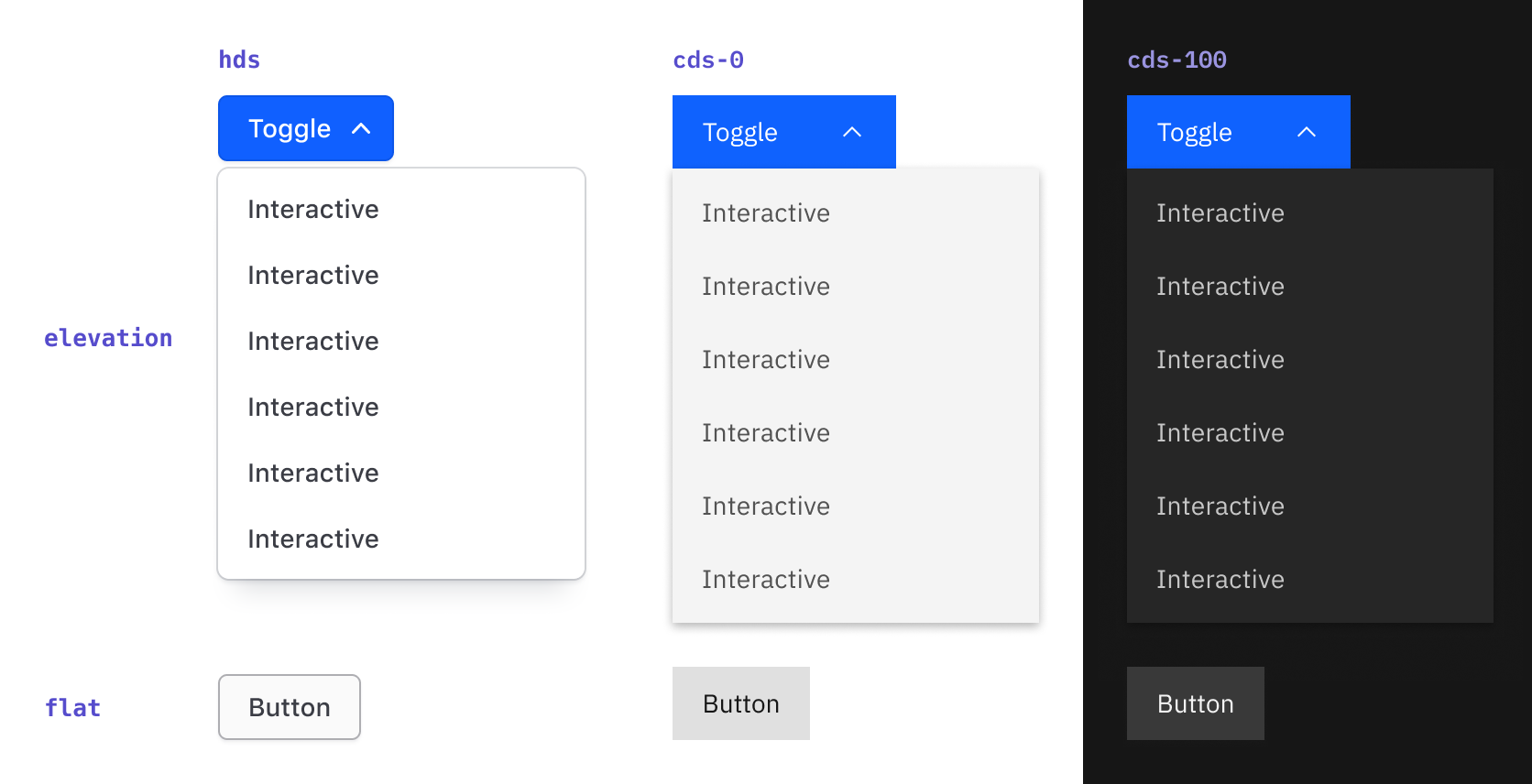
As HashiCorp products integrate into the IBM ecosystem, adopting a shared design language ensures a familiar experience for users across products. As such, the Helios Design System (HDS) is aligning with the Carbon Design System, the foundation of the IBM product ecosystem.
While our visual styling aligns with Carbon, our underlying components stay true to HDS best practices and patterns. The HDS UI Kit remains our recommended library, ensuring your Figma designs map directly to Ember components.
What is changing in Figma
Three major changes have been made in our Figma libraries to support "carbonization" and theming:
- Foundational variables relocated: Foundational variables, e.g.,
surface-color,foreground-color, have been moved into the Components v2.0 library to support theming. The Foundations v2.0 library is deprecated and will be sunset at a later date. - Design modes introduced: Modes control brand and color themes across HDS libraries.
- Component variables added: While primarily intended for design system maintainers to support theming across HDS components, component variables are also public. They can be used to build custom components or patterns, maintaining built-in HDS consistency and automatic mode support.
Available themes and modes
| Mode | Description |
|---|---|
hds (Legacy) |
Default mode for existing designs |
cds-0 (Recommended) |
Carbon's lightest theme |
cds-10 |
Carbon's secondary light theme |
cds-90 |
Carbon's secondary dark theme |
cds-100 (Recommended) |
Carbon's darkest theme |
See our guidelines on theming to learn how to use themes.
Adopting carbonized HDS in Figma
All component updates live directly inside the Components v2.0 library, so you do not need to swap libraries. Accept library updates in your design file as you would for a standard release.
Because the default mode remains hds, you can safely update your files without waiting for engineering alignment. Visuals will not change until you switch frames to one of the four Carbon modes.
Prep your design file
Before migrating, we recommend cleaning up your design files to minimize manual updates:
- Ensure all HDS components and icons are attached to the HDS library.
- Connect all layers to an HDS style or variable.
- Use auto layout properly across the file to prevent unexpected shifting during mode changes.
Update existing components
Most changes apply automatically when you accept the library updates. Detached or custom elements require manual migration.
| Component type | Action required |
|---|---|
| Standard HDS components | Accept Figma UI Kit updates to automatically pull in changes. |
| Detached components | Re-link to the HDS component or map to the appropriate HDS variable. |
| Custom components | Manually map tokens and styles to HDS variables. Create a local variable and map it to Carbon tokens if a variable is missing. |
Switch modes in Figma
Modes can be switched on layers, frames, components and component sets, sections, groups, and even pages.
To switch modes for an object:
- Select the layer, frame, group, or container.
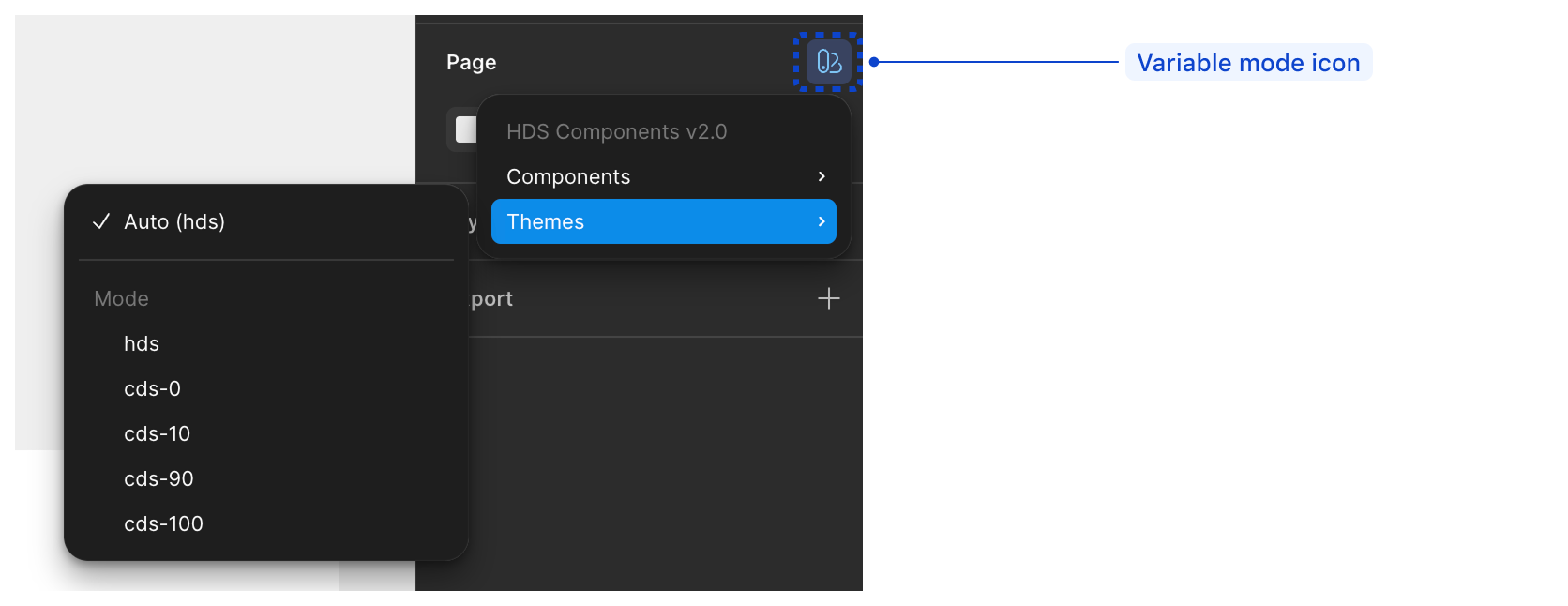
- In the right sidebar Appearance section, click the "Apply variable mode" icon.
- Hover over the "Themes" collection and select a mode.
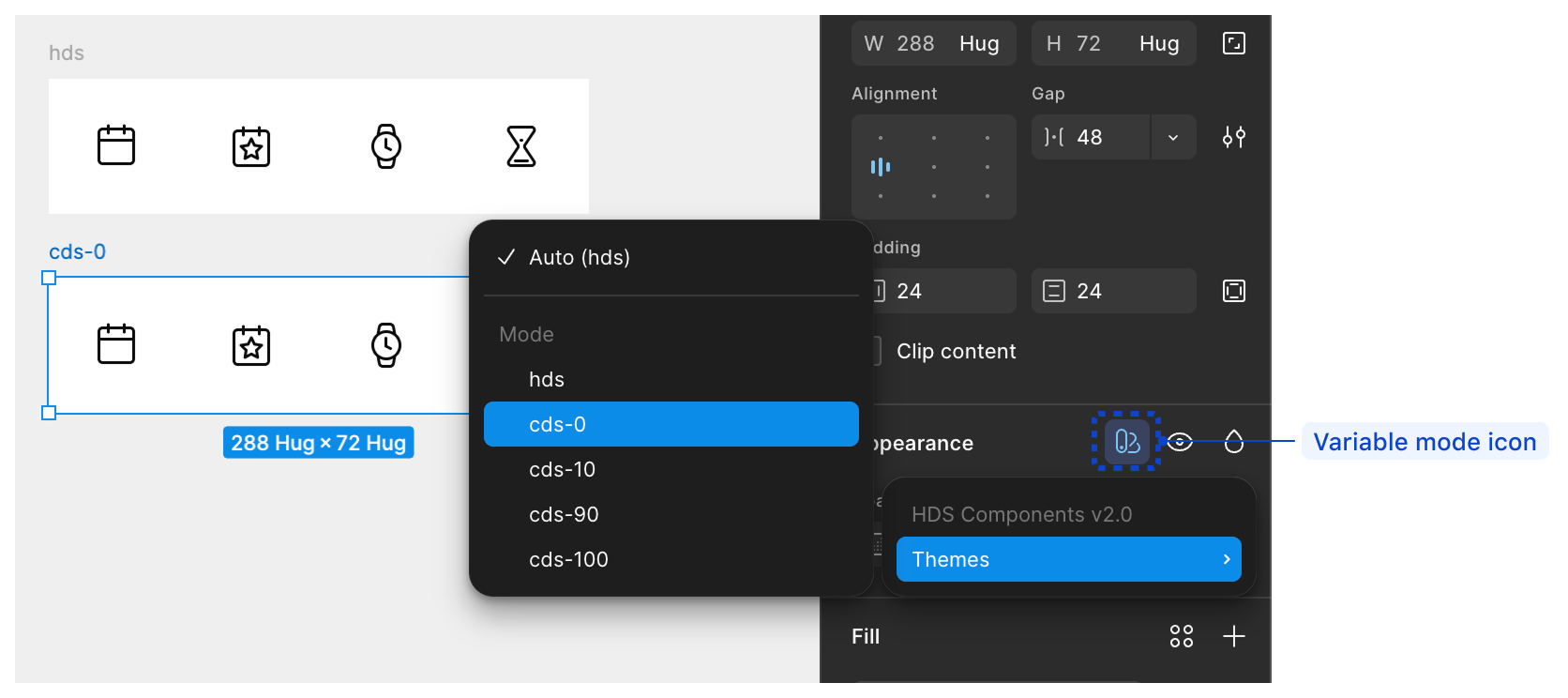
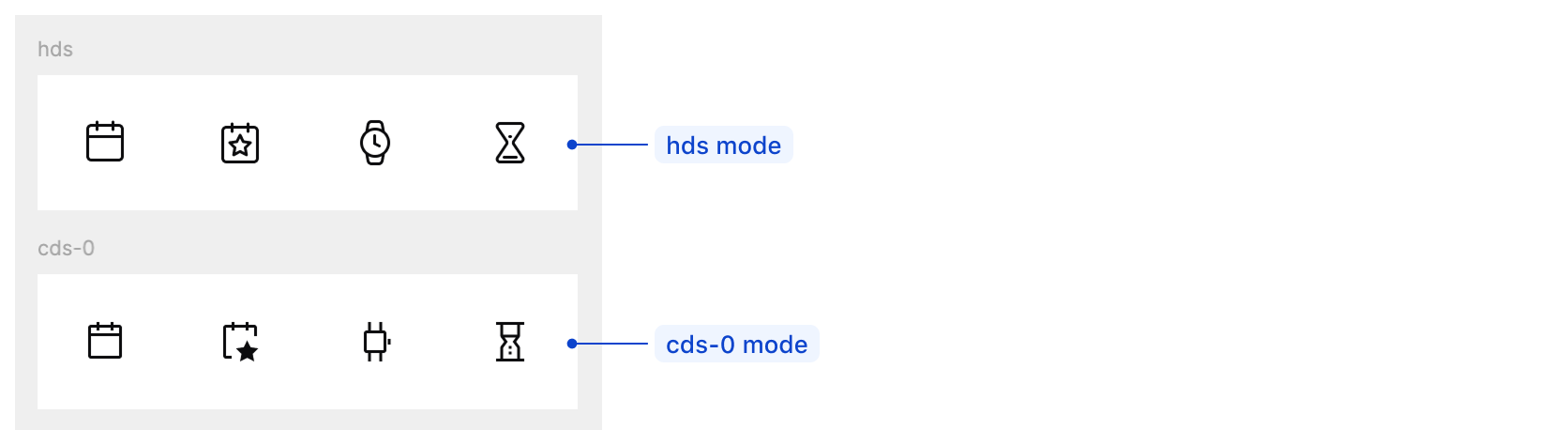
Switching modes will update the visual language of the selected object, including typography, colors, icons, etc.
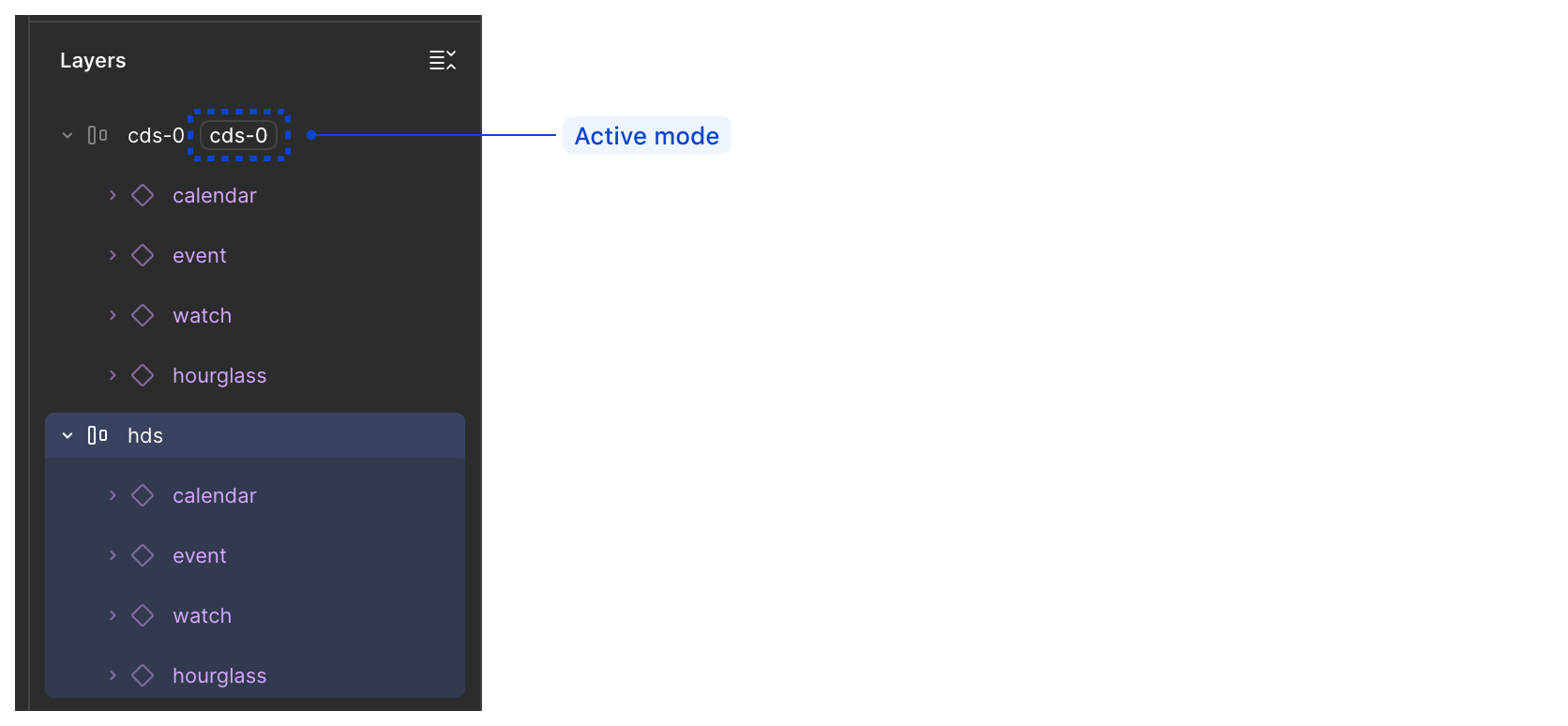
Once you select a mode, a tag with the mode name will appear next to the layer name in the Layers panel.
To switch modes on a page:
- Click an empty spot on the canvas to deselect everything.
- In the right sidebar Page section, click the "Apply variable mode" icon.
- Hover over the "Themes" collection and select a mode.
Design with themes
Designing with themes introduces a few adjustments to your workflow:
- Default state: Files remain in
hdsmode by default. - Post-migration: Work exclusively in
cds-0(light) orcds-100(dark) once your team adopts Carbon. - Testing: Test new designs in both light and dark modes, checking color contrast, hierarchy, and nested surfaces.
- Custom work: Build custom components or patterns in both light and dark modes.
Adoption checklist
- Duplicate your design file to create a backup copy.
- Confirm engineering and product teams are ready to support Carbon modes in code.
- Audit your design file for detached components and re-link them to the main library component. Run Check designs in Figma and replace hardcoded local colors and styles with HDS variables or styles.
- Accept all pending HDS UI Kit updates in Figma.
- Switch the top-level frame mode from
hdstocds-0(light mode). For high-contrast touchpoints, switch the containing frame tocds-100. - Duplicate the top-level frame and switch the mode to
cds-100to test dark mode. - Verify nested surfaces and sidebars inherit or apply the correct mode.
- Review color contrast ratios, accessibility, and hierarchy across
cds-0andcds-100. - Collaborate with engineering to ensure consistency during implementation.
- Archive or delete the backup design file.
Visual differences exist between the Helios design language and the IBM/Carbon design language. We have tried to capture the most prominent ones.
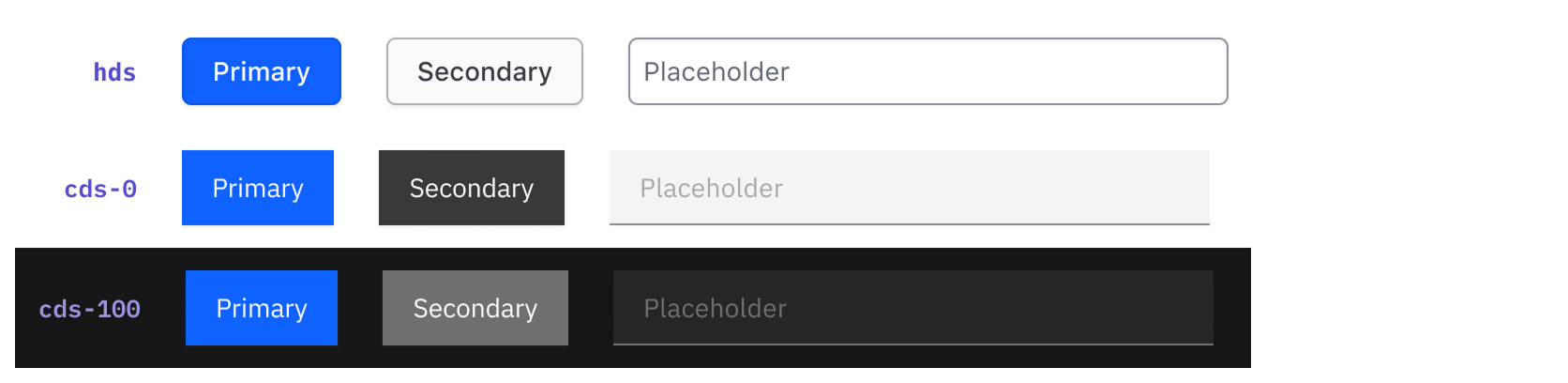
Borders
HDS uses softer corners, whereas Carbon features minimal rounded corners.
Interactive states
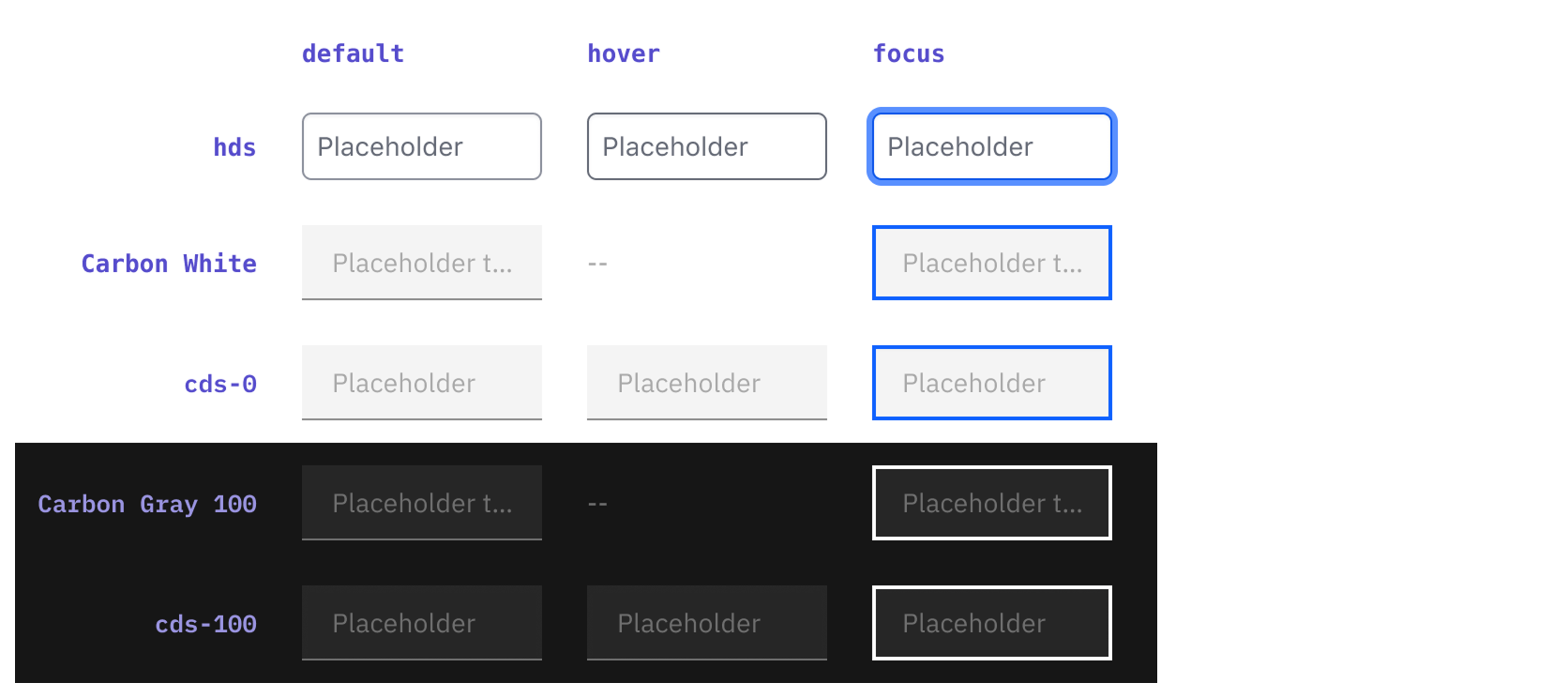
HDS distinguishes hover and active states across all components, while Carbon may mimic focus states or omit certain variations. HDS maps missing states to the closest available option.
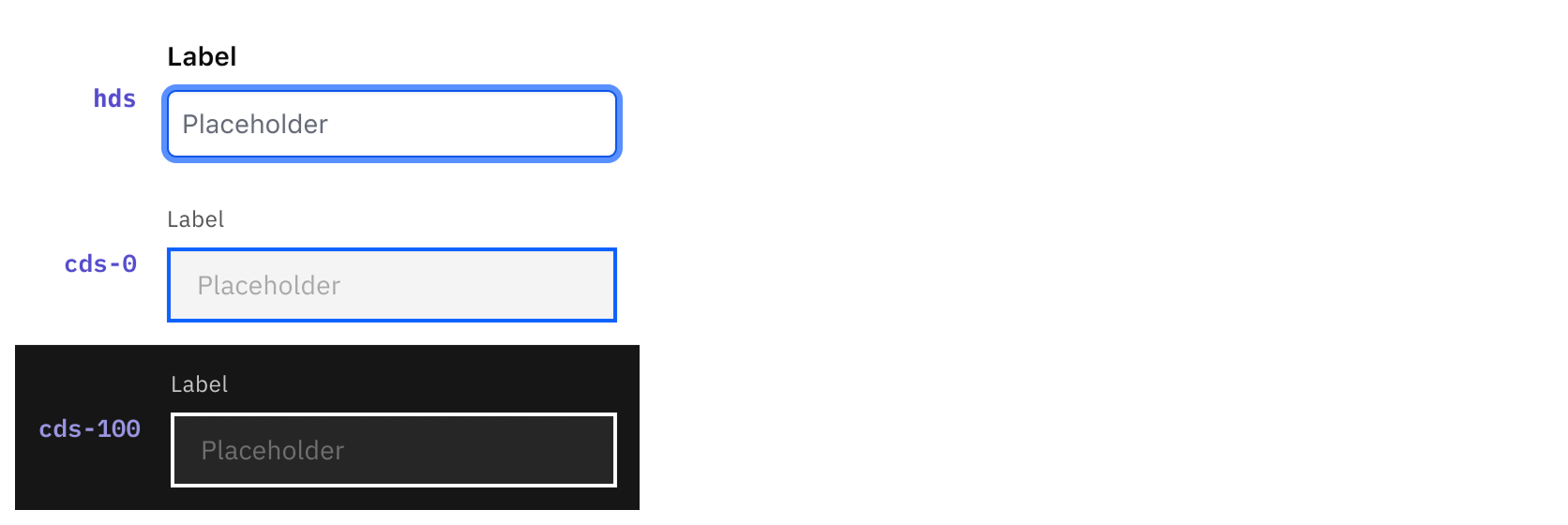
HDS uses two borders (a 1px inner border and a 3px outer outline) for the focus state, while Carbon uses a single 2px inner border.
Layering
HDS relies on box-shadows for depth, while Carbon leans into flat design with minimal shadows and a specific layering model.