The Helios Design System (HDS) MCP server gives AI assistants structured access to our component APIs, documentation, design tokens, and icons. It helps an assistant find HDS resources and apply our guidance while you design, build, or review an application.
The server implements the Model Context Protocol (MCP), an open standard for connecting AI applications to external tools and data sources.
What the server provides
After you connect the server, your AI assistant can consult:
- Exact component invocation names and API details.
- Component usage, accessibility, and content guidance.
- Design token names and resolved values.
- Icon names, sizes, and variants.
Your assistant can use these sources when HDS information is relevant to your task. The server provides context and guidance. It doesn't generate application files, install dependencies, or modify your project.
Set up the server
Requirements
You need:
- Node.js 24 or later
- An MCP client that supports local servers using the standard input/output (
stdio) transport
The examples below use pnpm.
Install the server
Install @hashicorp/design-system-mcp as a development dependency from your application directory.
pnpm add --save-dev @hashicorp/design-system-mcpThe package includes the compiled server, so you don't need to clone or build the HDS repository. It runs as a separate development tool; don't import it into your application or include it in your production bundle.
Connect an MCP client
Add the following server definition to your MCP client configuration. Replace /absolute/path/to/application with the absolute path to the application where you installed the package.
{
  "mcpServers": {
    "helios-design-system": {
      "command": "pnpm",
      "args": [
        "--dir",
        "/absolute/path/to/application",
        "exec",
        "helios-design-system-mcp"
      ]
    }
  }
}
The --dir option ensures that pnpm finds the locally installed server and starts it in your application directory. If your client already starts there, you can use "args": ["exec", "helios-design-system-mcp"] instead.
Restart or reload your MCP client after updating its configuration.
Verify the connection
Ask your client a question that requires HDS information, for example:
Find the HDS component for an advanced data table and show me its exact invocation name.
Your client should call search_hds_components and return one or more matching components. If your client displays connected servers or tools, look for the server you configured as helios-design-system and the tools listed below.
Available tools
Your assistant uses these tools to find HDS information in response to your requests. All tools are read-only and use local catalogs or bundled documentation.
| Tool | Purpose |
|---|---|
search_hds_components |
Finds components and confirms their exact names. |
get_hds_component |
Retrieves a component's API, including arguments, accepted values, blocks, and yielded components. |
search_hds_docs |
Finds usage, accessibility, and other guidance in the bundled HDS documentation. |
read_hds_docs |
Reads a complete documentation passage, including guidance and code examples. |
search_hds_icons |
Finds icons and their available sizes by name or keyword. |
search_hds_tokens |
Finds design tokens, their values, and CSS variable names. |
Prompt guidance and examples
Tell your assistant what you want to accomplish and include relevant context, such as the component name, framework, documentation area, or code you want reviewed. Specific requests help your assistant find relevant HDS guidance.
For more specific results, you can ask your assistant to find a component and consult its documentation before suggesting an implementation. For example:
Find the HDS Button component, search its documentation for full-width usage, then read the guidance and code examples before showing me how to add it to my Ember template.
Example prompts
- "Which HDS component should I use for a confirmation dialog?"
- "How do I add sorting to an HDS Advanced Table?"
- "Review this template against the HDS Button accessibility guidance."
- "Find the design token for the primary interactive color."
- "Find the icon for copying content and list its available sizes."
- "What changed in the latest version of the HDS Modal?"
Data and privacy
The server is read-only. It doesn't modify your application, HDS packages, or documentation.
- Component, token, and icon data come from your application's installed HDS packages when their catalogs can be resolved. Otherwise, the server uses its own HDS dependencies, which may be different versions.
- Documentation search uses a snapshot bundled with the server.
- Tool and resource requests don't make network requests or send your project data to an HDS service.
Documentation results include canonical helios.hashicorp.design URLs. An MCP client may choose to open or fetch those URLs independently, subject to the client's configuration and permissions.
Troubleshooting
The server doesn't connect
- Confirm that the
--dirargument points to the application where you installed@hashicorp/design-system-mcp. - Confirm that Node.js 24 or later and pnpm are available to the process that starts your MCP client.
- Confirm that you've installed your application's dependencies.
- Restart or reload your MCP client after changing its configuration.
Tools or resources return catalog errors
Run pnpm install from your application directory, then restart your MCP client. Check the client's server logs for the package and catalog path involved. If the error persists, include the error message and your installed MCP and HDS package versions when contacting support.
Inspect the server directly
Run the MCP Inspector from your application directory to view the registered tools and resources and call them interactively.
pnpm dlx @modelcontextprotocol/inspector pnpm exec helios-design-system-mcpFor implementation details, visit the HDS repository. To get support or report an issue, visit the support page.
The server exposes six resources, organized into three areas; components, design tokens, and icons.
Components
Component resources let an AI assistant answer questions like: "What variants does the Alert component support?" or "What are the accepted values for the Button's color property?"
| Resource | What it provides |
|---|---|
| Component catalog index | A list of all HDS components with summary metadata: names, module paths, and basic properties |
| Component detail | Full record for a specific component by name: properties, variants, usage guidance, and API details |
Design tokens
Design token resources let an AI assistant answer: "What CSS value does the foreground-primary token resolve to?" or "What tokens are available for surface colors?"
| Resource | What it provides |
|---|---|
| Token catalog index | A list of all HDS tokens with summary metadata: keys, names, and paths |
| Token detail | Full record for a specific token by key: its value, original value, and resolution chain |
Icons
Icon resources let an AI answer: "What icon should I use for a warning state?" or "What are all the available icons in the 'navigation' category?"
| Resource | What it provides |
|---|---|
| Icon catalog index | A list of all Flight icons with summary metadata and categories |
| Icon detail | Full record for a specific icon: name, variants (16px and 24px), file names, and aliases |
Documentation lookup
Something here about website documentation lookup.
What the MCP server does not have access to
- Your Figma files (that's the Figma MCP server's role)
- Your application's codebase
- Any design patterns or page templates not codified as components in the catalog, though it will try to interpret these to the best of its ability using the HDS tokens.
While primarily intended for engineering workflows, the Helios MCP server can help designers prototype, test component properties, and vet concepts quickly.
Follow these guidelines to get the most out of Helios when translating your Figma mockups, components, styles, and variables into code.
Prepare your Figma file
To get the most out of the Helios MCP, ensure Figma files are appropriately structured, named, and machine-readable. While a human can ask clarifying questions or spot subtle patterns, AI relies entirely on the file's layer structure, metadata, and explicit prompt context. Clear input leads directly to clear output.
Use connected HDS components
Most HDS Figma components have a counterpart in code. When using attached Figma instances, AI automatically reads their properties, variant options, and usage guidelines.
Detaching HDS components breaks the link to the component metadata. Without that context, AI is forced to infer properties, often resulting in something non-standard.
To give an AI assistant the best available Helios context:
- Use assets directly from the Helios library in Figma: styles, variables, components, patterns, and icons.
- Use properties that are exposed in the Figma component to customize it.
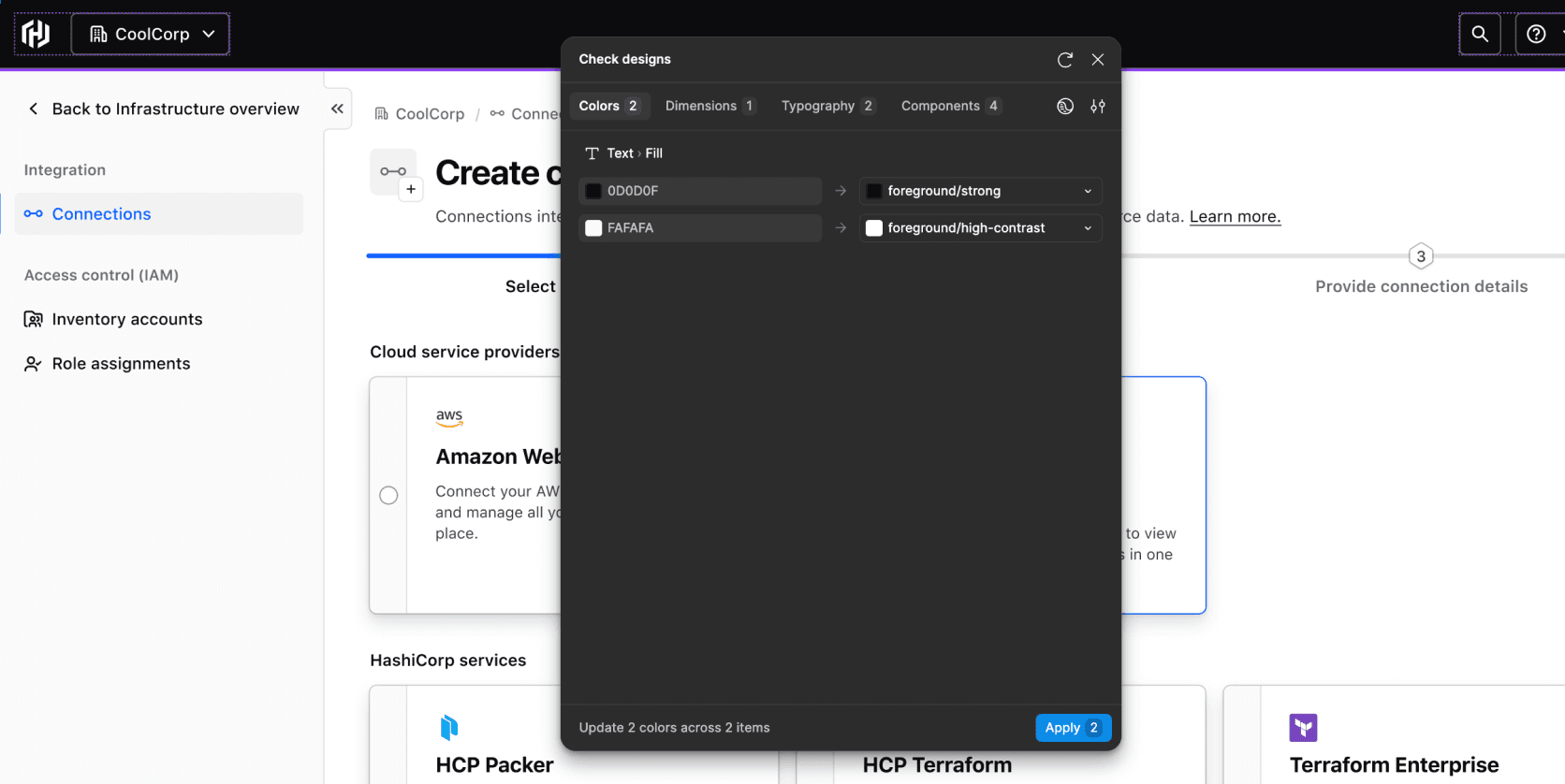
- Check for detached assets using Figma's Check Designs feature and re-attach assets where necessary.
- Refrain from overriding styles or variables within a component, as this creates divergence between the design input and the code output.
Use HDS tokens and styles
HDS design tokens are available in Figma as variables or styles and map directly to CSS properties in code.
- Design Tokens: Using a variable like
page-primarytells AI the raw color and its semantic role in the system. - Hex Values: Using a hex value like
#ffffffleaves AI guessing whether it should bepage-primary,surface-primary, orneutral-0.
The same applies to typography. Applying the body-200 text style tells AI which tokens to reference or which properties to pass to <HdsText>.
Use auto layout
Auto Layout provides structured data about direction, spacing, padding, alignment, and wrapping. AI uses this data to map your frames to flexible code layouts (like <HdsLayoutFlex> and <HdsLayoutGrid>).
Designs built without Auto Layout force both humans and AI to guess at intended spacing and structure, which often leads to inaccurate code.
- Use Auto Layout for any frame containing more than one element.
- Define spacing explicitly using gap and padding variables rather than manually positioning elements on canvas.
- Avoid absolute positioning unless specifically required, e.g., tooltips, overlays, etc.
Figma hygiene
Layer names provide essential metadata for AI. Clear, consistent names help it identify the hierarchy and purpose of your design. Figma's default names like Frame 47, Group 3, or Rectangle 12 give AI no meaningful context.
- Name frames and groups based on their purpose, e.g.,
header,sidenav,form-section,empty-state. - Rename component instances to reflect their specific purpose, e.g., changing "Text Input" to
name-input. This adds helpful context without breaking the underlying metadata. - Avoid unnecessary nesting. Only nest frames or groups when required for Auto Layout, hierarchy, or visual structure.
Validate files with "Check Designs"
Before passing your designs to an AI assistant or engineer, run Figma's Check Designs feature. It automatically flags missing structure and context, helping you spot:
- Detached variables and type styles (which it can often auto-restore)
- Detached components (flagged, but cannot be auto-restored)
- Spacing inconsistencies where system tokens can be applied
HDS Ember components do not use spacing tokens, so applying spacing variables is not required for code generation.
0.2.2
Patch Changes
🔄 Updated dependencies:
- @hashicorp/design-system-components@7.0.0
- @hashicorp/design-system-tokens@6.0.0
- @hashicorp/flight-icons@5.3.0
0.2.1
Patch Changes
🔄 Updated dependencies:
- @hashicorp/design-system-components@6.6.0
0.2.0
Minor Changes
Added four MCP prompts for selecting, implementing, reviewing, and troubleshooting Helios components and patterns using documentation and resolved component APIs:
choose_hds_componentprovides component recommendations with rationale, alternatives, and accessibility considerations.implement_hds_patternguides clients to produce focused Ember implementations with integration test examples.review_hds_usageguides code reviews for API usage, composition, and accessibility responsibilities.troubleshoot_hds_componentguides diagnosis of unexpected behavior with evidence-backed causes, diagnostic steps, and suggested corrections.
Patch Changes
🔄 Updated dependencies:
- @hashicorp/flight-icons@5.2.0
- @hashicorp/design-system-components@6.5.1
0.1.0
Minor Changes
Added npm distribution for the Helios MCP server, installed as an application development dependency and launched with the helios-design-system-mcp command.
Fixed token and icon catalog fallback resolution to use the application's components package before the MCP server's own dependencies.
0.0.1
Patch Changes
🔄 Updated dependencies:
- @hashicorp/design-system-components@6.5.0
- @hashicorp/flight-icons@5.1.0